
Custom Workflows Built Around How Your Business Actually Handles Calls.
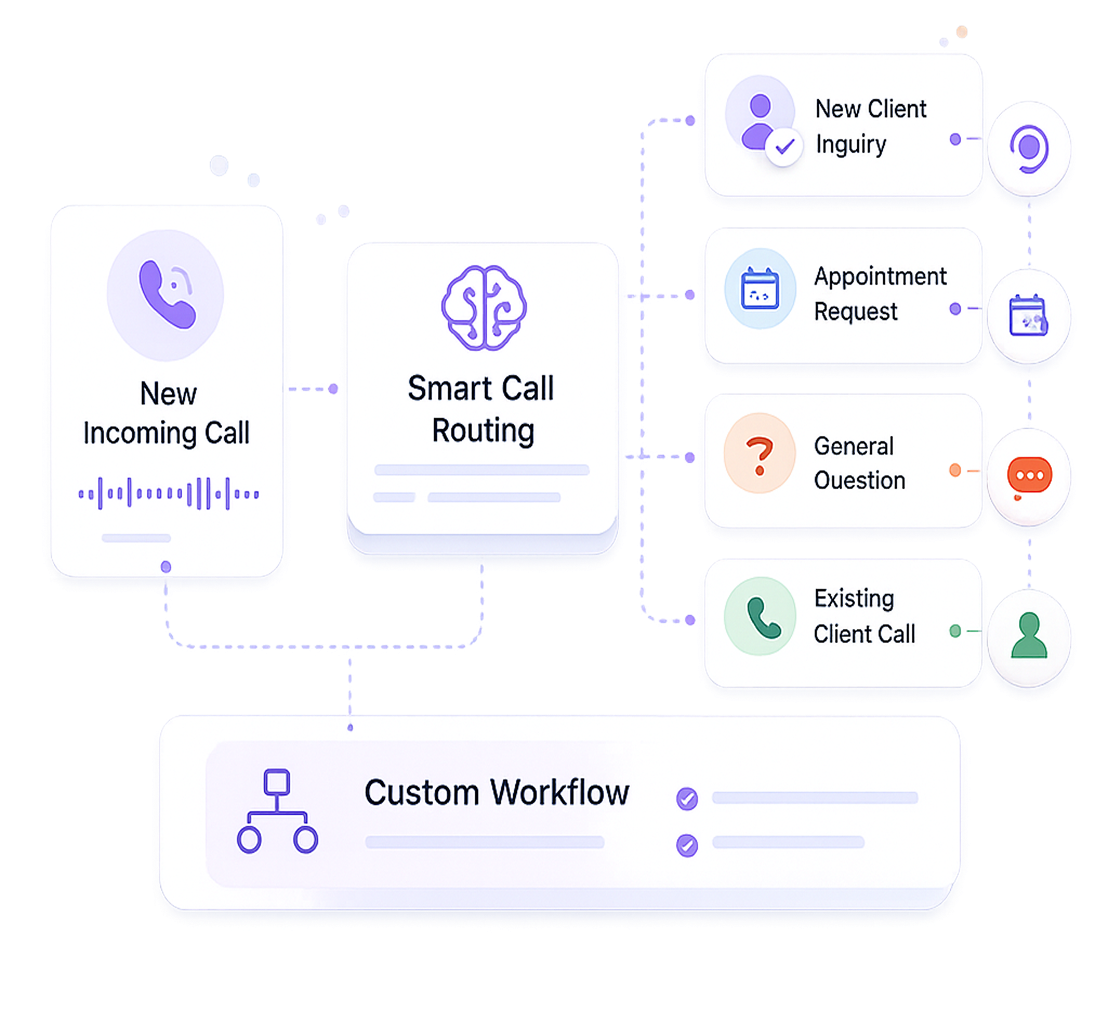
How your AI agent greets callers, what it asks, how it routes different call types, when it escalates, how it follows up, and how it behaves after hours, all of it is configured around your specific workflows. Not a generic script. Not a template. Your rules, followed consistently on every call.
- 1 Month Free Trial
- Built for client-facing teams
Why Generic Call Handling Does Not Work for Real Operations
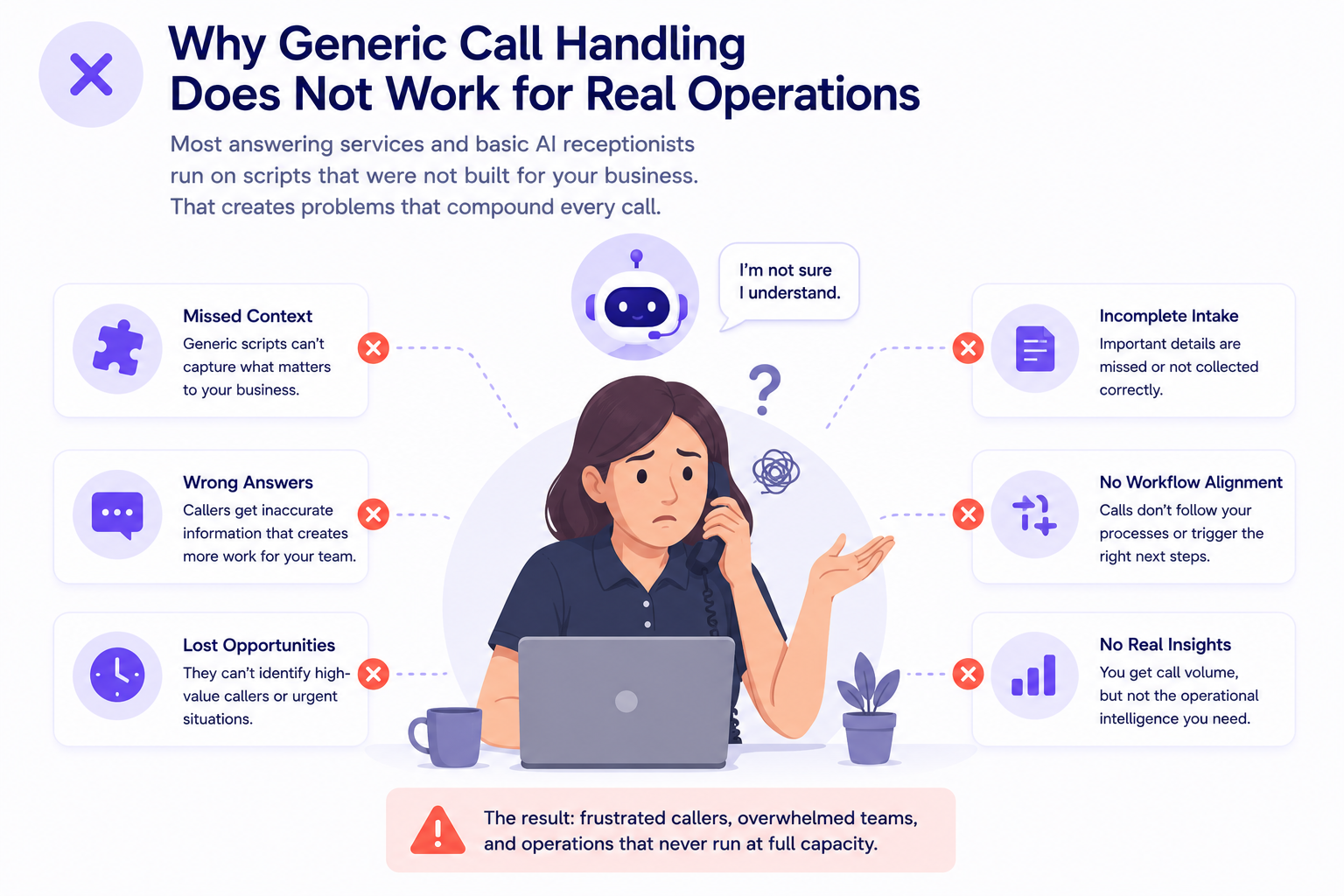
Most answering services and basic AI receptionists run on scripts that were not built for your business. That creates problems that compound every call.
Generic scripts don’t distinguish between a new lead, an existing client, or an urgent issue. Every call gets the same flow, even when the situation calls for a different response.
A generic answering service can take a message, but it usually misses the details your team actually needs. That leaves you with information that’s incomplete, unorganized, and hard to act on.
Without clear escalation rules, calls either get passed off too often or not when they should. That creates either unnecessary handoffs or urgent calls that never reach a person.
A generic script doesn’t adjust for time, urgency, or your after-hours policy. So callers after hours hear the same flow as everyone else instead of the right next step.
What Gets Configured in AI Answering
Every part of the call workflow from the first word the AI says to the rules that govern outbound follow-up is configured around your business during onboarding and adjustable from your dashboard at any time.
Inbound Call Configuration
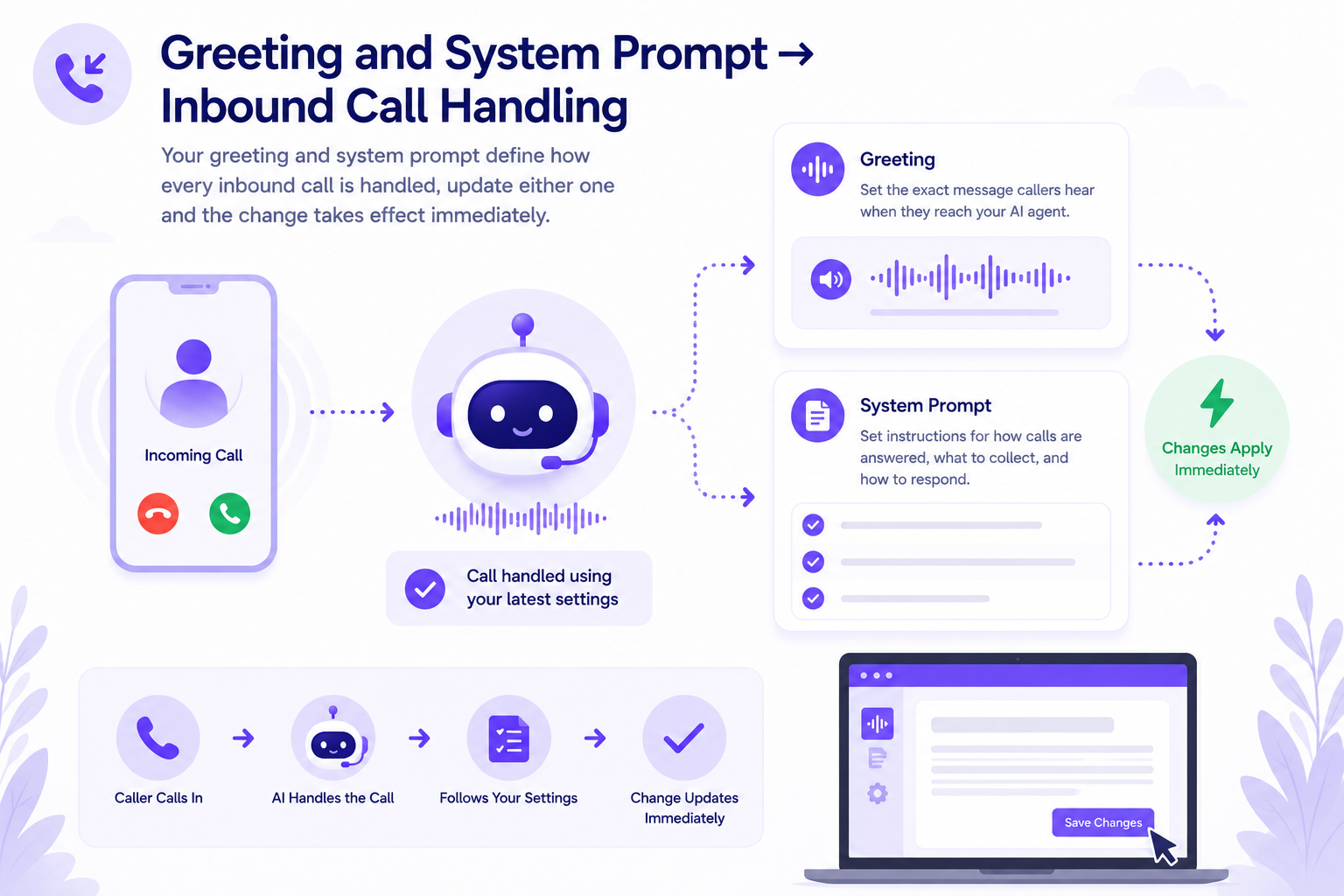
- Custom greeting - the first message callers hear
- System prompt - how your AI is trained to handle calls for your business
- Voice and tone - gender, age range, personality, tone shaping, naturalness settings
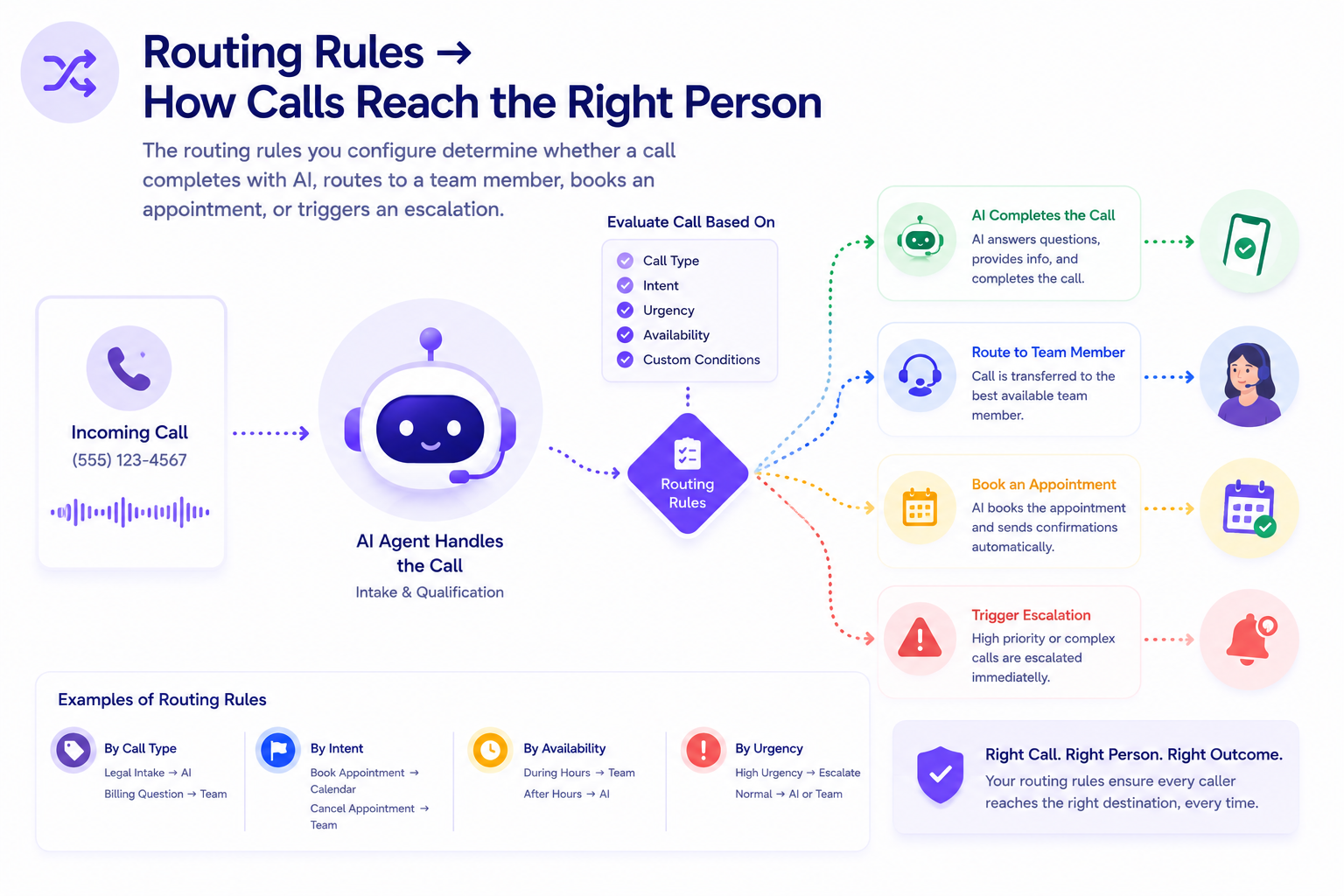
- Routing rules - by call type, department, urgency, time of day, or caller
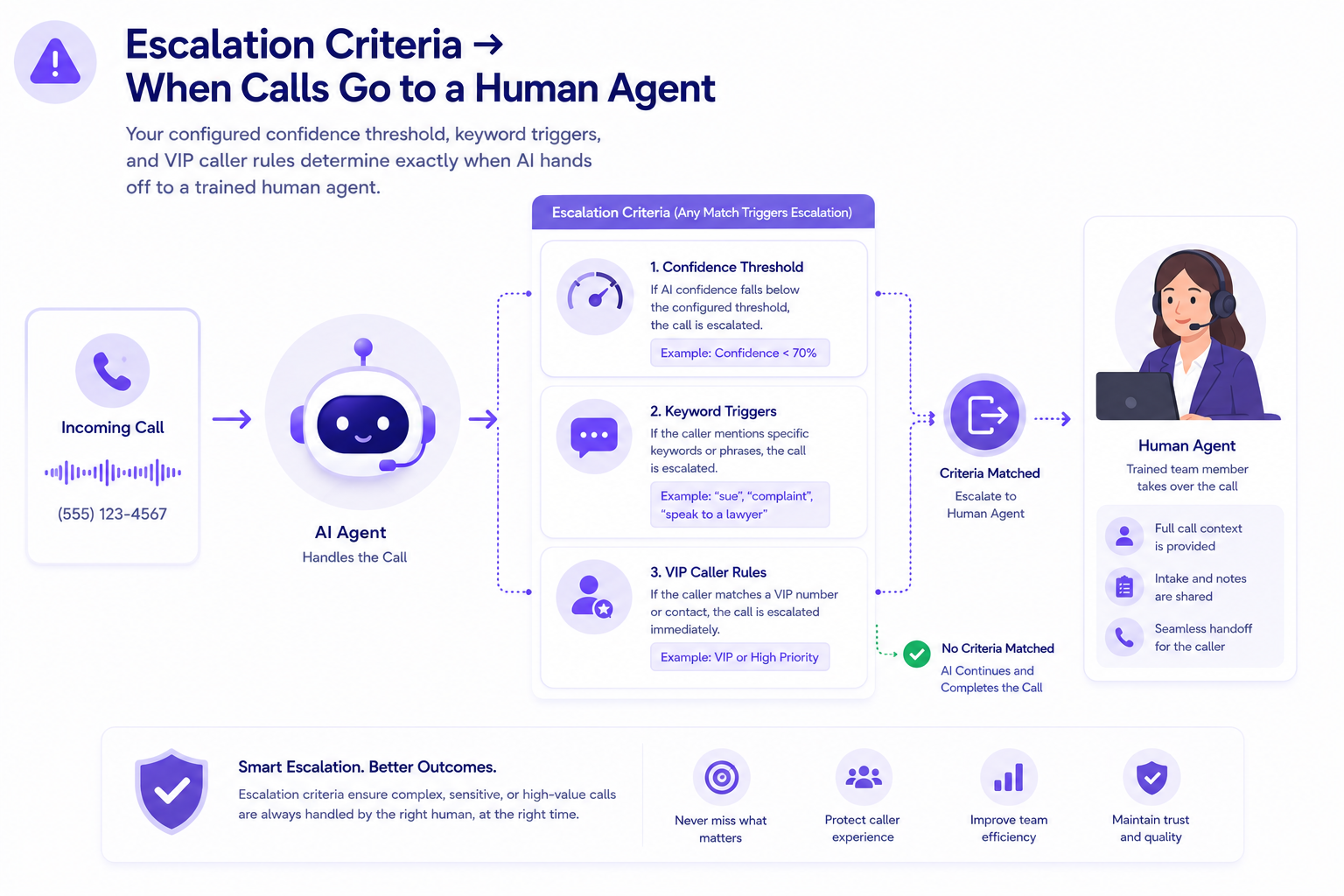
- Escalation criteria - confidence threshold, keywords, VIP callers
- Language settings - English and Spanish are currently supported, with additional languages planned
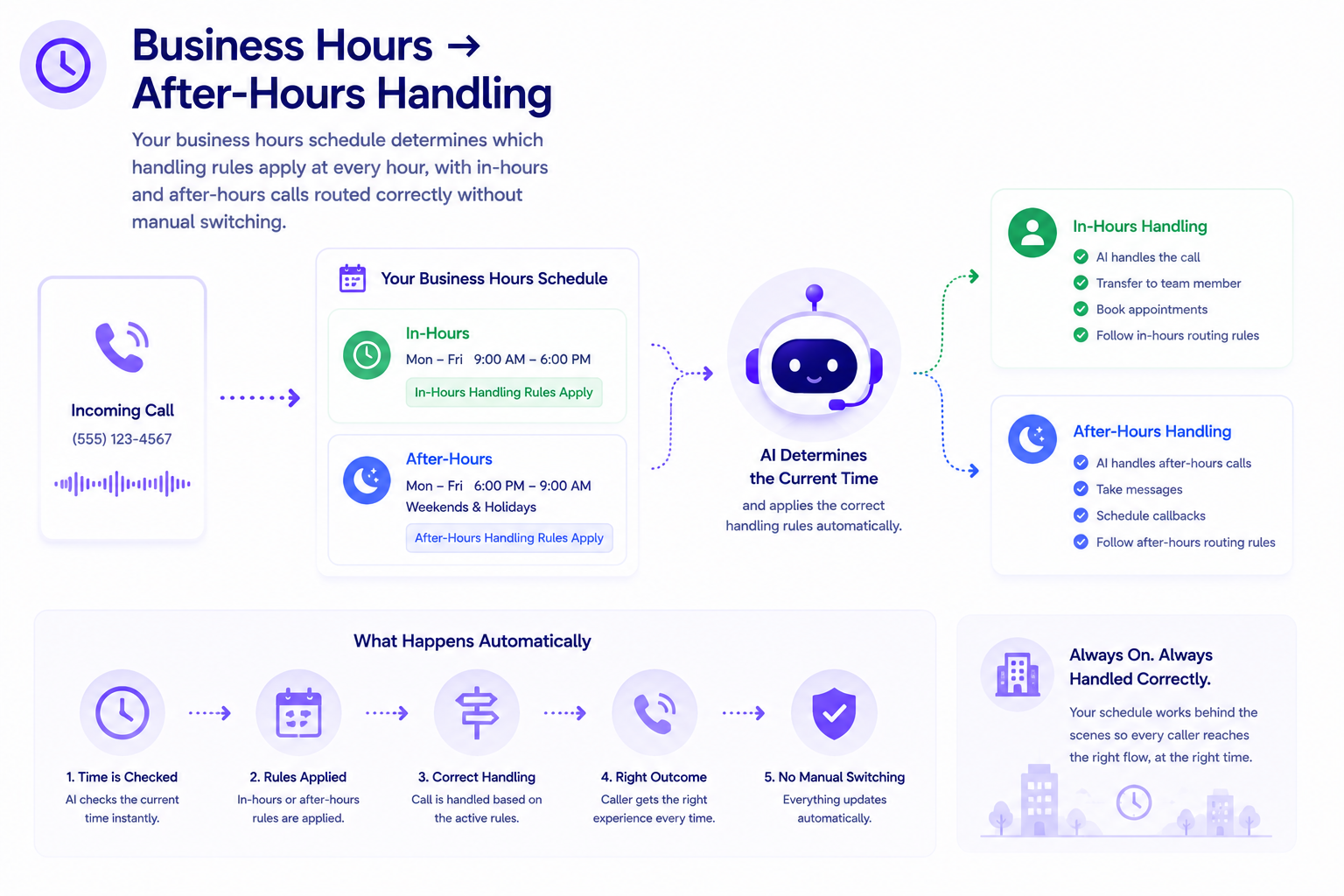
- Business hours - per-day schedule with different handling in-hours vs. after-hours
Outbound Call Configuration
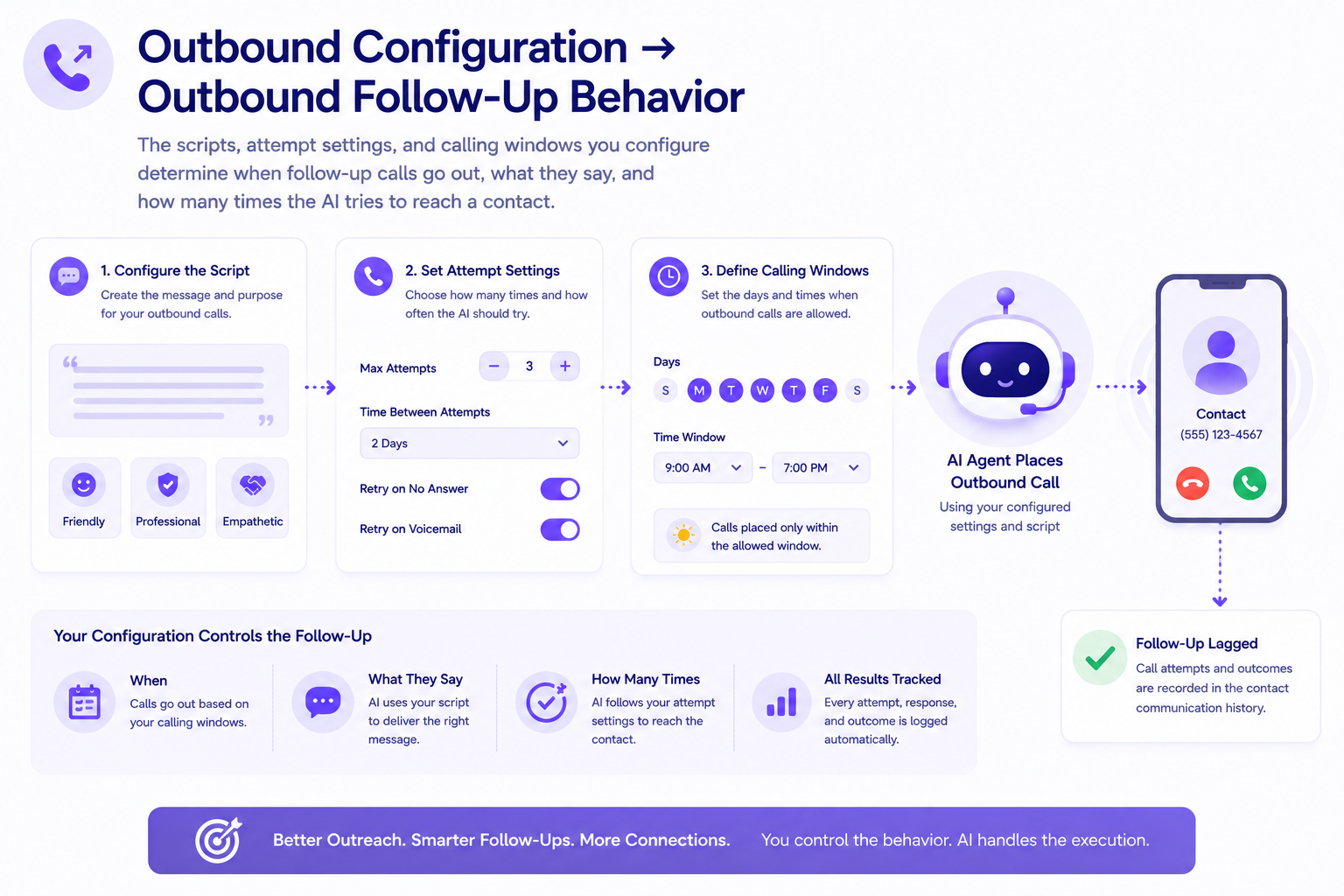
- Custom script per outbound call type - missed follow-up, incomplete intake, reminders, reactivation
- Call attempt settings - number of attempts and spacing between each attempt
- Calling windows - days and hours outbound calls are permitted
- Voice and tone - configurable separately from inbound if needed
- Outbound enablement - turn outbound calling on or off from your dashboard.
Intake Configuration
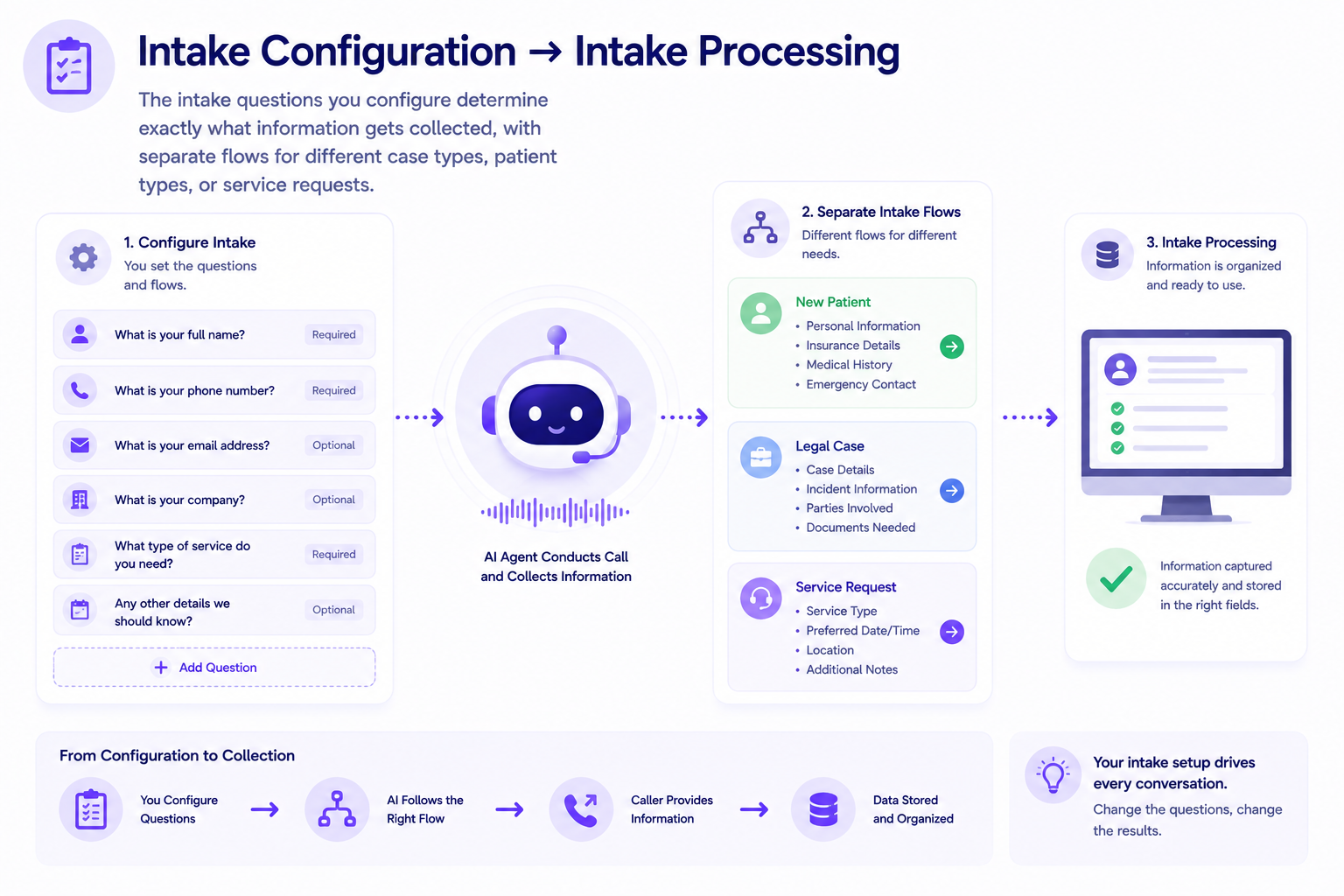
- Custom intake questions per caller type or case type
- Structured data fields configured for your practice area or service type
- Guided conversational flow, not a robotic form
How Inbound Call Configuration Works
Inbound call configuration is managed from the Call Configuration panel in your dashboard, under the Inbound Calls tab. Six confirmed configuration areas govern everything that happens when a call comes in.
Set the first message callers hear and the full instructions your AI follows on every call. This is where you define your intake requirements, escalation rules, terminology, and call objectives.
Choose the AI’s voice profile, including gender, age range, and personality. Then adjust tone, pace, warmth, formality, and filler words so it sounds more natural.
Route calls by caller type, urgency, time of day, or any rule you set. You can assign primary, secondary, after-hours, and emergency numbers from the dashboard.
Set the exact triggers that move a call from AI to a human agent, including confidence level, keywords, VIP callers, call type, and failed attempts. You can also control call recording and transcript settings here.
Choose which languages your AI supports. English and Spanish share the same call flow and intake process, so no separate workflow is needed.
Set open and close times for each day of the week. The AI uses those hours to apply different handling rules during business hours and after-hours.
How Outbound Call Configuration Works
Outbound call configuration is managed from the Call Configuration panel, under the Outbound Calls tab. Four confirmed configuration areas govern when, how, and how many times your AI agent makes outbound calls.
Different Callers, Different Handling. Configured for Your Business.
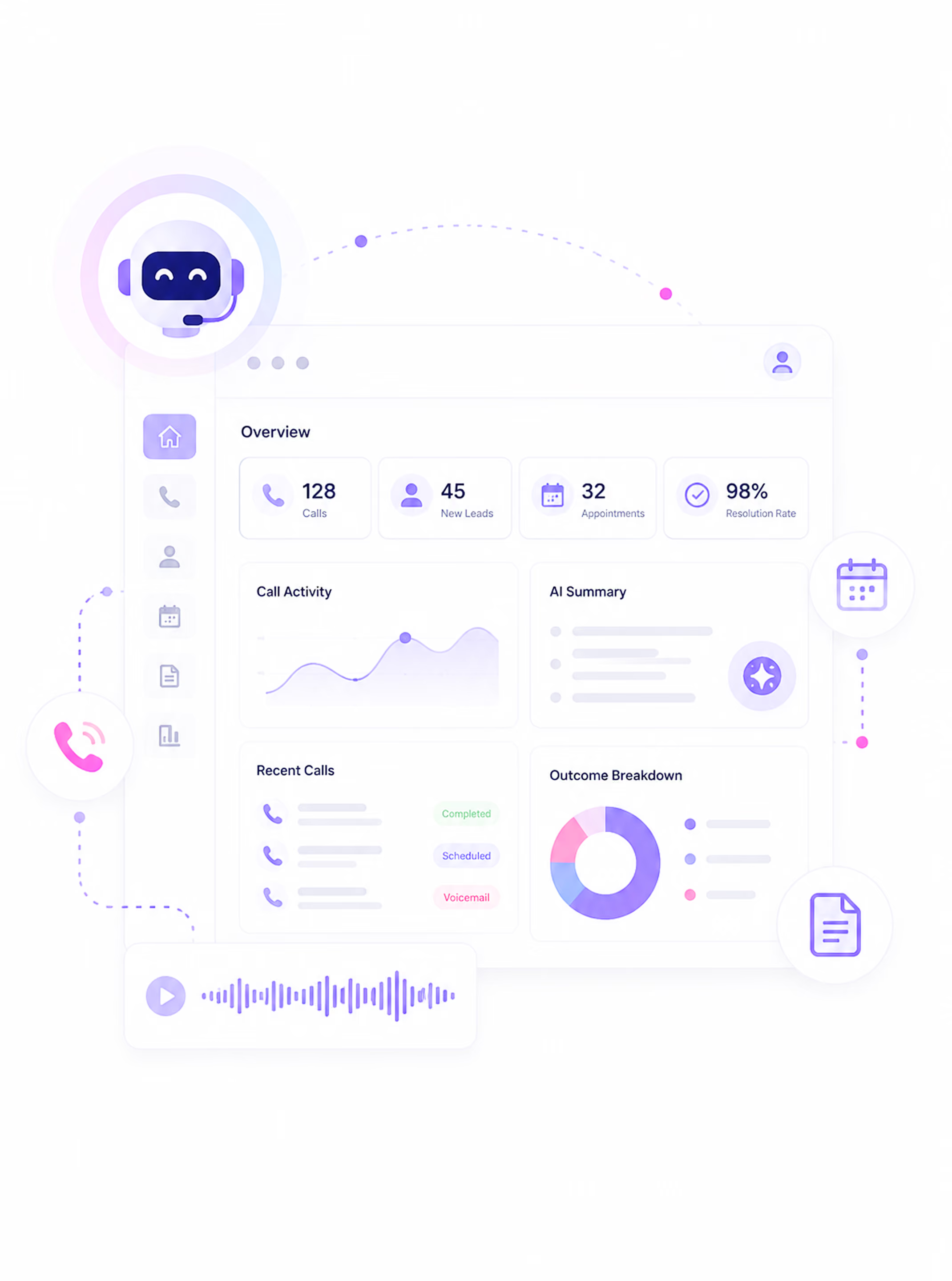
Every call handled by AI Answering appears in the call log the moment it ends. Your team can search and filter the entire call history to find exactly what they need without scrolling through a chronological list.
Law Firms
Law firms can configure intake around case type, urgency, and caller status, then route new leads and existing clients differently. Urgent keywords trigger escalation, and after-hours calls follow separate routing rules.
Healthcare Practices
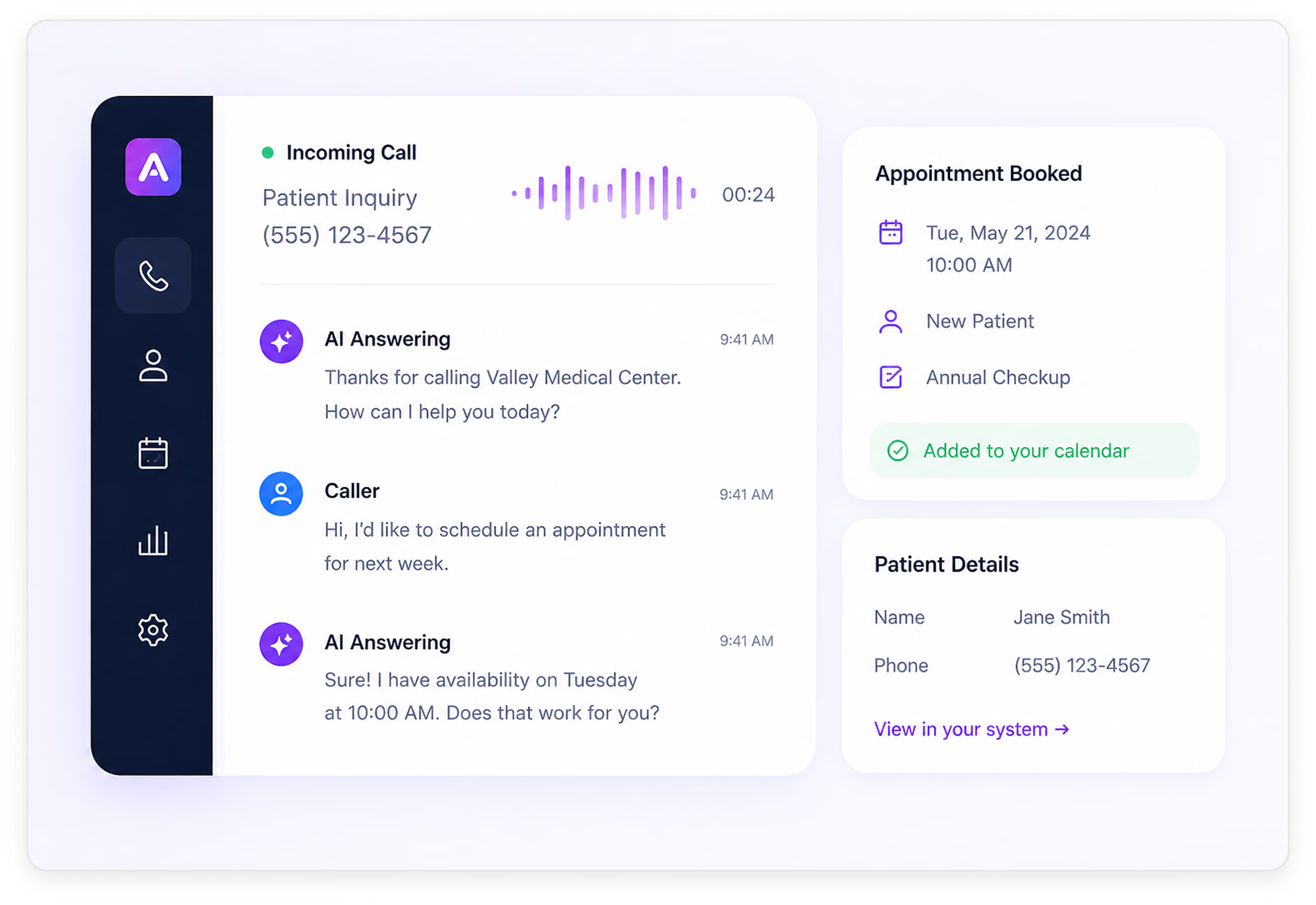
Healthcare practices can collect patient type, appointment reason, and insurance details while enabling booking for the AI agent. Urgent concerns escalate immediately, while non-urgent after-hours calls are routed to the right message or on-call number.
Home Services
Home services companies can tailor intake around service type, location, and urgency, with emergency calls routed straight to the on-call dispatcher. Non-emergency requests follow standard booking, while outbound follow-ups run on scheduled attempt windows.
Configured Once. Followed Consistently on Every Call.
The most important operational benefit of configured workflows is consistency. A configured AI call center keeps greetings, intake, routing, and escalation consistent across every call, regardless of time or who is covering the phones.
across every call
Every caller with the same case type or service need goes through the same structured intake flow.
based on your rules
Escalation happens when your defined conditions are met. Not when someone decides to transfer. Not when the call gets too long.
hours handling
After-hours calls are handled according to your configured rules every night, every weekend, every public holiday.
Your Configuration Governs Everything That Happens on Every Call
Custom Workflows is not a settings page in isolation. What you configure determines how every other feature in the platform behaves.
Trusted by Businesses That Needed a Call Center Built Around Their Workflows

See How AI Answering Is Configured Around Your Call Workflows.
In a live demo, we walk through how your greeting, intake flow, routing rules, escalation criteria, and business hours are configured for your specific business, and what that looks like on a real call.