Call Analytics That Tracks Every Call, Outcome, and Appointment.

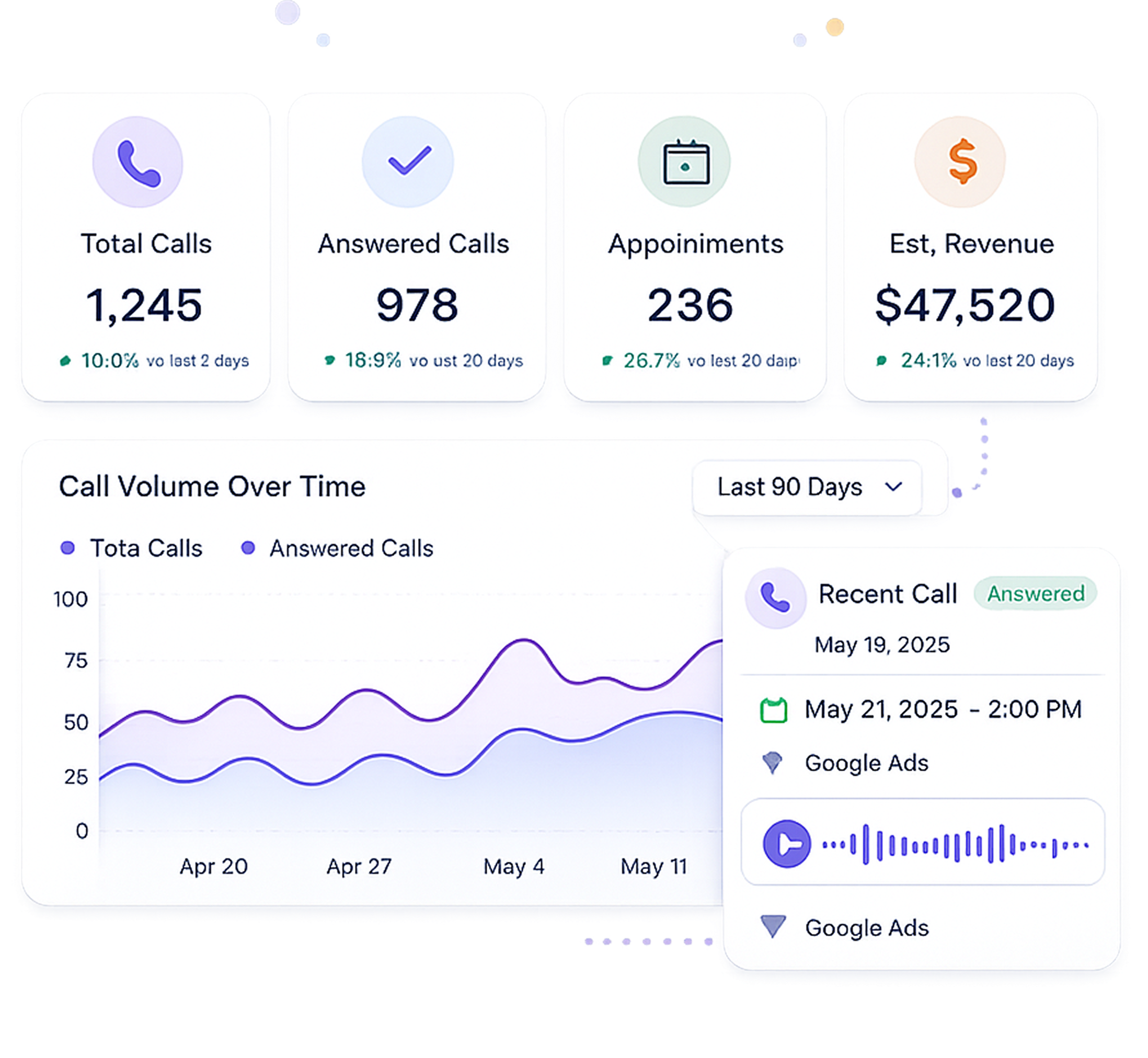
The moment a call ends, your AI Answering dashboard has the full record: who called, what was said, what was captured, whether an appointment was booked, and what happened next.

  • 1 Month Free Trial
  • Built for client-facing teams
Dashboard showing total calls, answered calls, appointments, estimated revenue, call volume graph, and recent call details.
Two shields with gradient purple-blue edges, one with medical caduceus, the other with checkmark.

What Phone Logs Miss

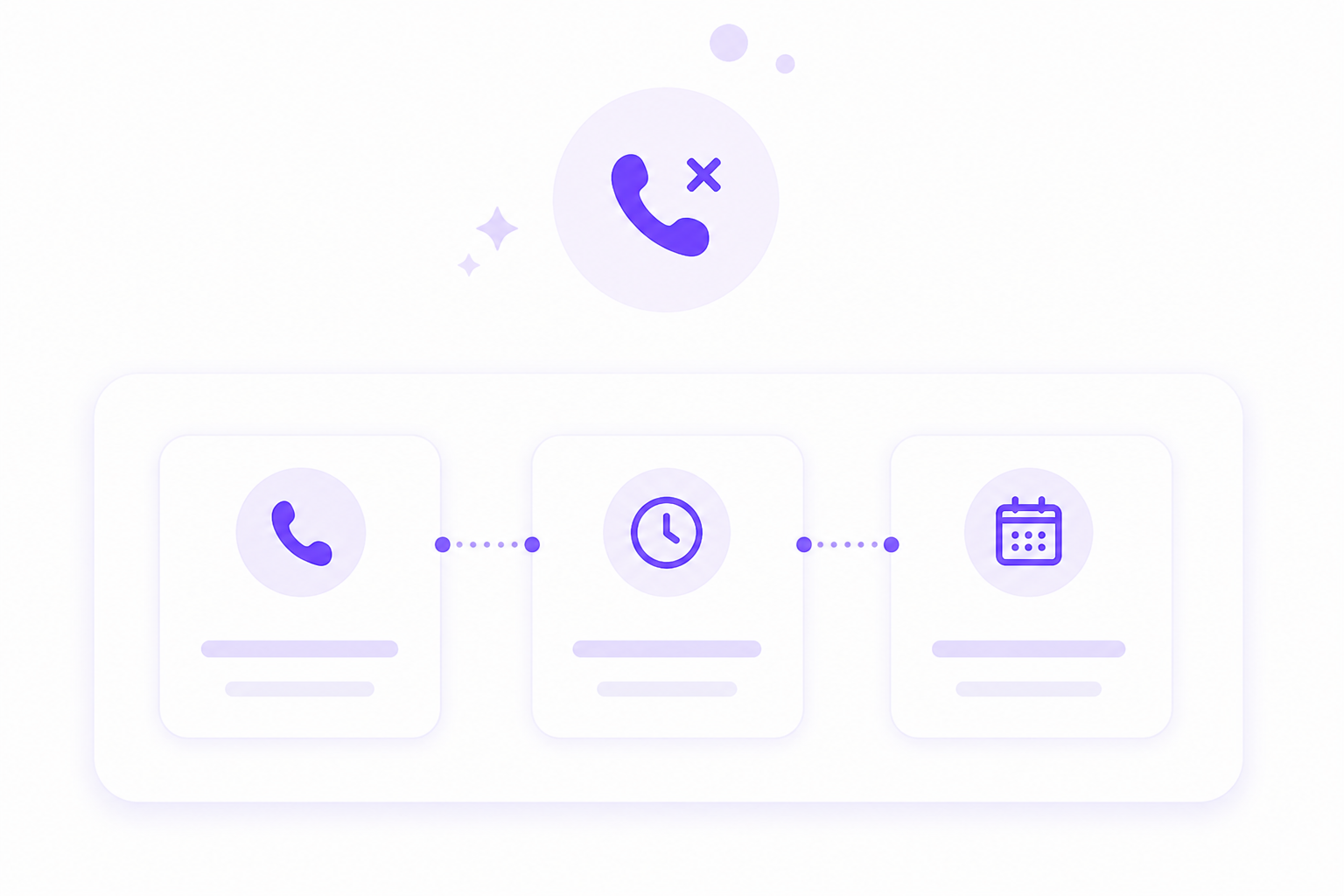
A phone log tells you a call happened. It shows a number, a duration, and a timestamp. That is where the information ends.

You know a call came in. That's it.

Your phone log captures nothing about who called, what they needed, or what the AI did, just that a call happened.

Quality Assurance Without Manual Call Reviews.

Without a structured call record, there's no way to check quality without playing each recording in full, a time cost most managers can't afford.

No visibility into which calls are converted.

Call volume is logged, but whether those calls led to booked appointments, completed intakes, or escalations is invisible.

Call data is siloed from everything else.

When call, intake, appointment, and contact records live in separate systems, your team wastes time piecing together what happened instead of acting on it.

If your team is starting the day by piecing together what happened on calls overnight, asking around for outcomes, or listening through recordings just to find out whether an appointment was booked, AI Answering removes all of that. Every call handled, every detail captured, so you never have to wonder what happened.

See Live Call Center Activity From One Dashboard

Your AI Answering dashboard is the first thing you see when you log in. It gives you a live view of call center activity across your operation without opening a single call record.

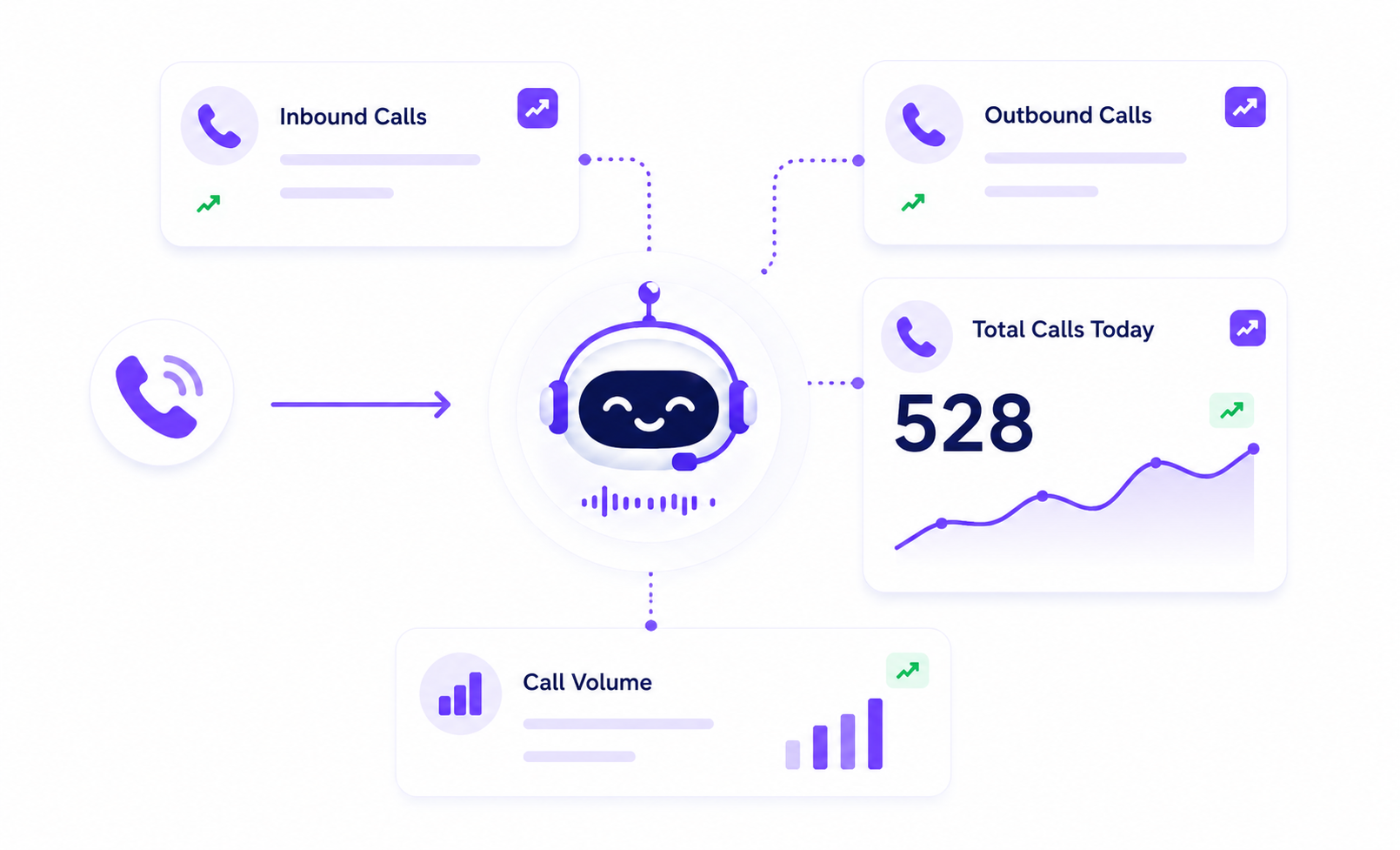
Total Calls Today
Running count of every call handled today, updated in real time. See at a glance whether call volume is higher or lower than expected without pulling a report.
Escalation Rate
Percentage of calls that escalated from the AI agent to a human agent. Track whether your escalation rules are calibrated correctly and whether certain call volumes are generating more escalations than expected.
Appointments Booked
Number of appointments booked today by the AI agent. Visible at a glance alongside call volume so you can see how call activity is translating into scheduled business.
Average Handle Time
Average duration of calls handled by the AI agent. A reference point for understanding how long calls are running and whether handle times are in line with expectations.
Diagram of a smiling chatbot in center showing inbound, outbound, total calls today (528), and call volume stats.
Below the stat cards, your dashboard also shows upcoming appointment logs and recent call activity so you can move directly into the details from the same screen.

Your Complete Call History. Searchable, Filterable, Organized.

Every call handled by AI Answering appears in the call log the moment it ends. Your team can search and filter the entire call history to find exactly what they need without scrolling through a chronological list.

Search

Search across your full call history by caller name, phone number, or keywords. Find any call instantly without scrolling.
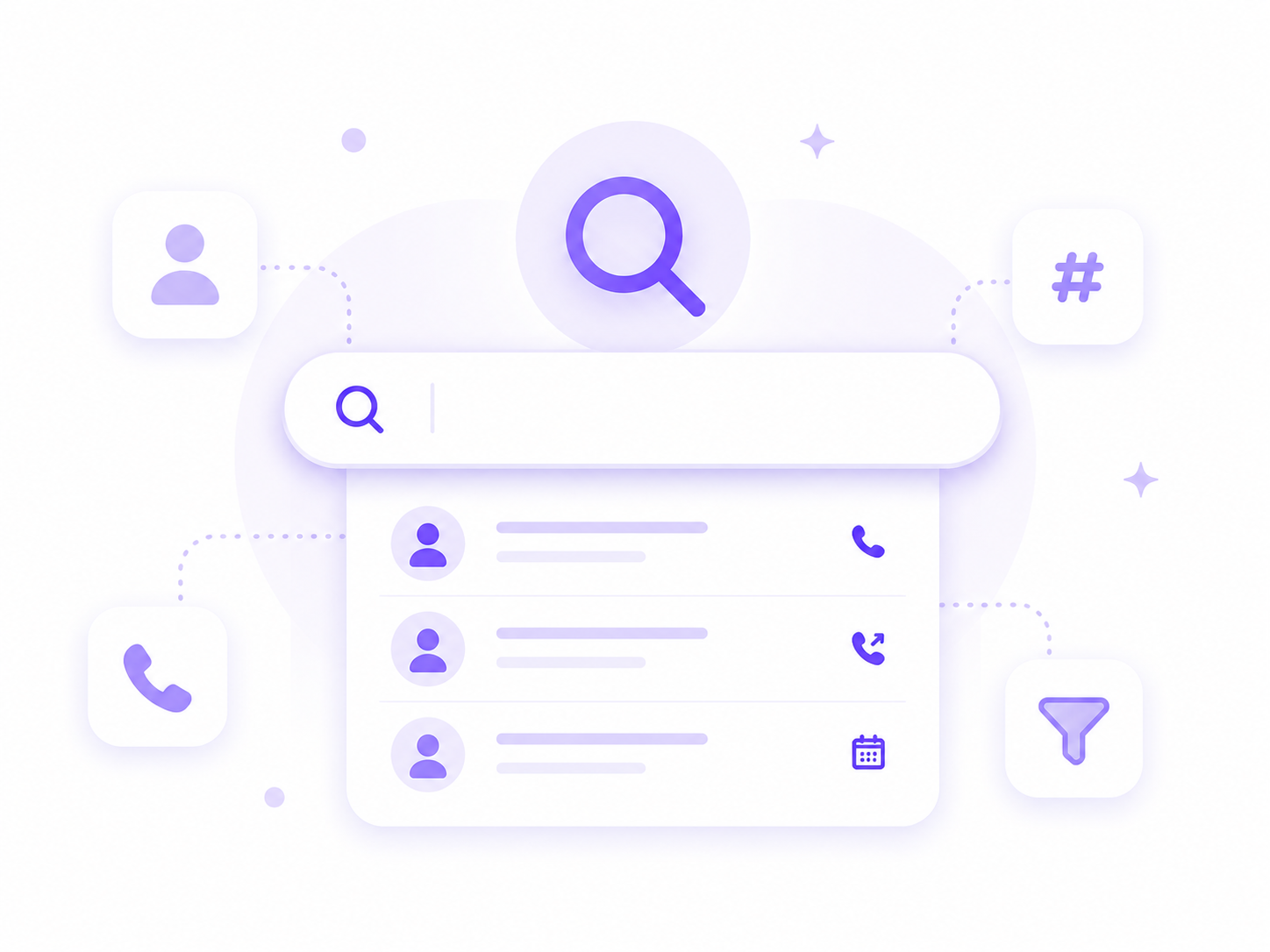
Search bar with user icons, phone, calendar, hashtag, and filter icons connected around it.

Filter

Filter your call history by:

  • Call type: inbound or outbound
  • Status: completed, escalated, or other call statuses
  • Urgency: all urgency levels or specific urgency flags
  • Date range: start date and end date
  • Sort: newest first or other sort options
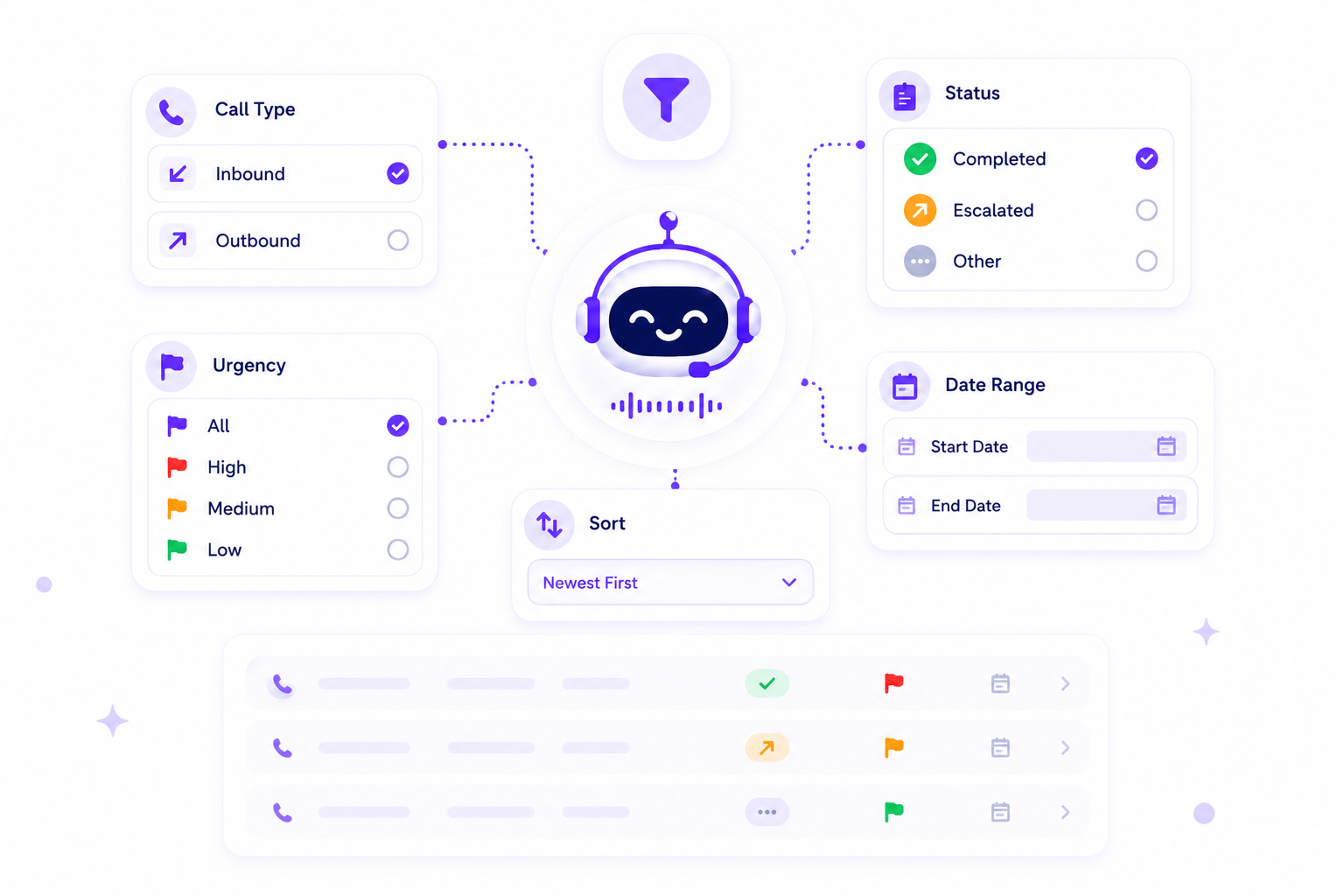
Chatbot interface with filters for call type, urgency, status, date range, and sorting options.

What Each Call Row Shows

Every row in the call log displays:

  • Date and time of the call
  • Caller information: phone number and caller name where captured
  • Agent: which AI agent or human agent handled the call
  • Duration: total call length
  • Type: inbound or outbound
  • Status: completed, escalated, or current call status
  • "View Details" button: opens the full call detail record
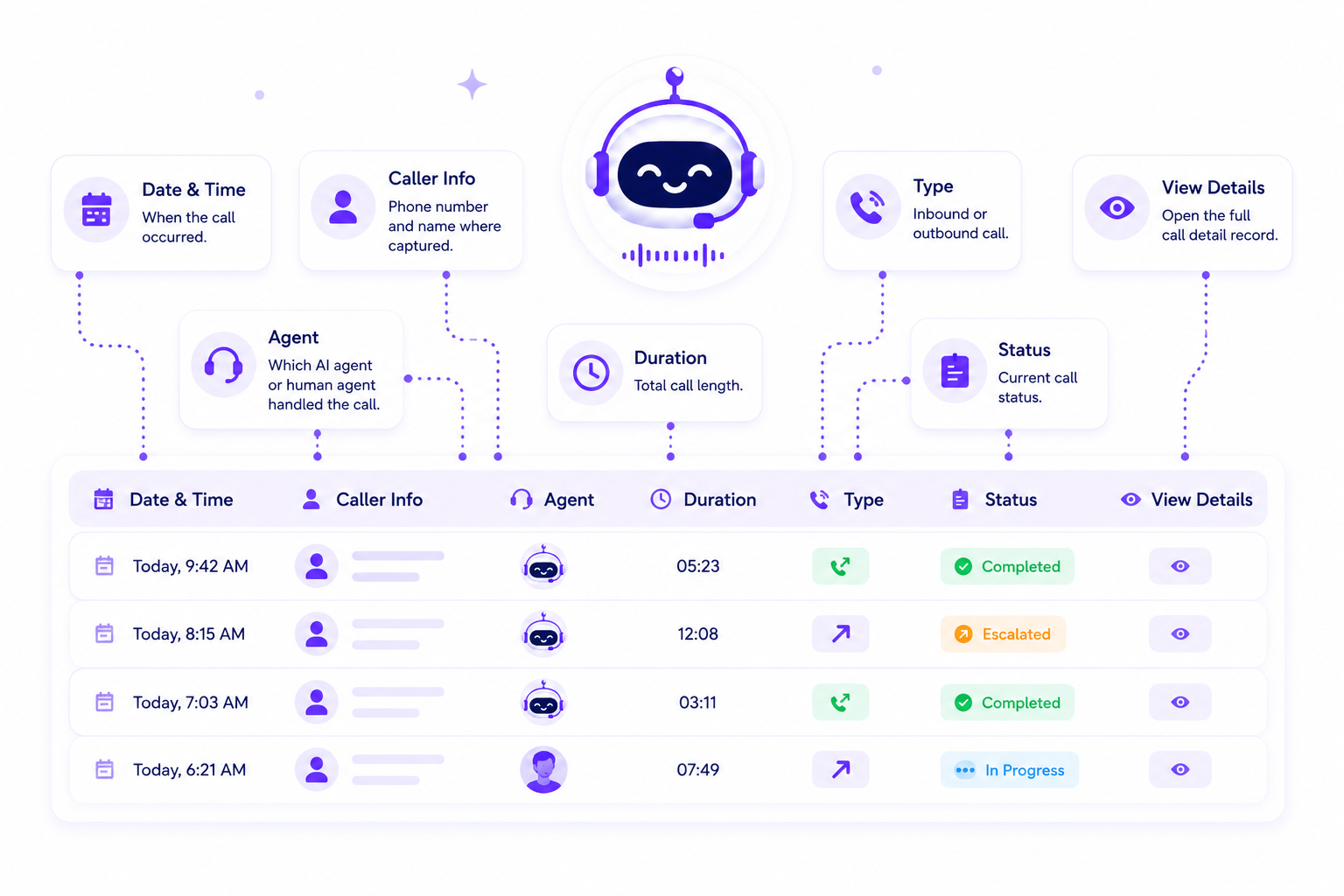
Infographic explaining call log columns: date/time, caller info, agent, duration, type, status, and view details icons.

Click Into Any Call. See Everything That Happened.

The call detail view is where the full record of a single call lives. Click "View Details" on any call log entry and your team sees everything the AI captured, logged, and generated, without listening to the full recording.
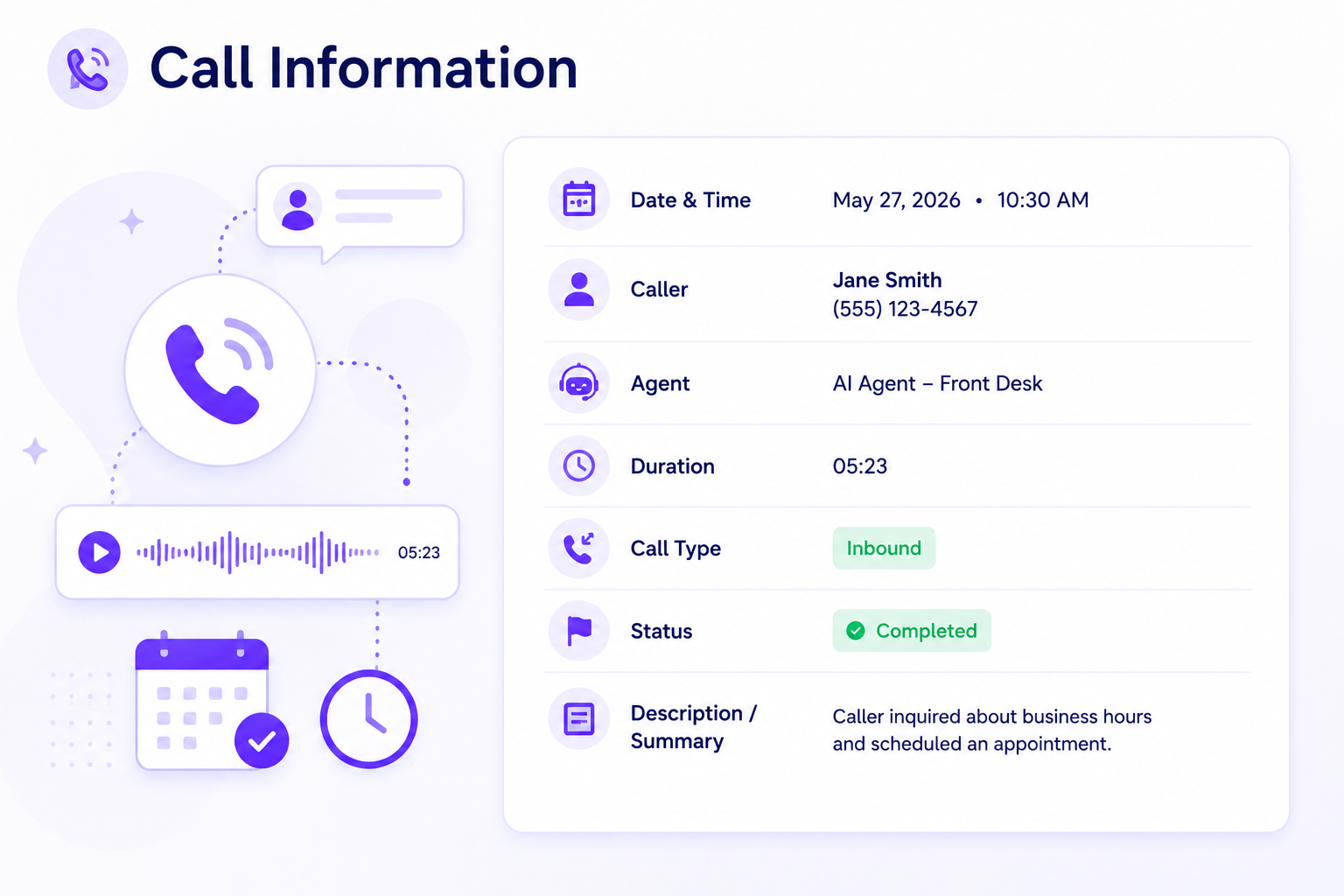
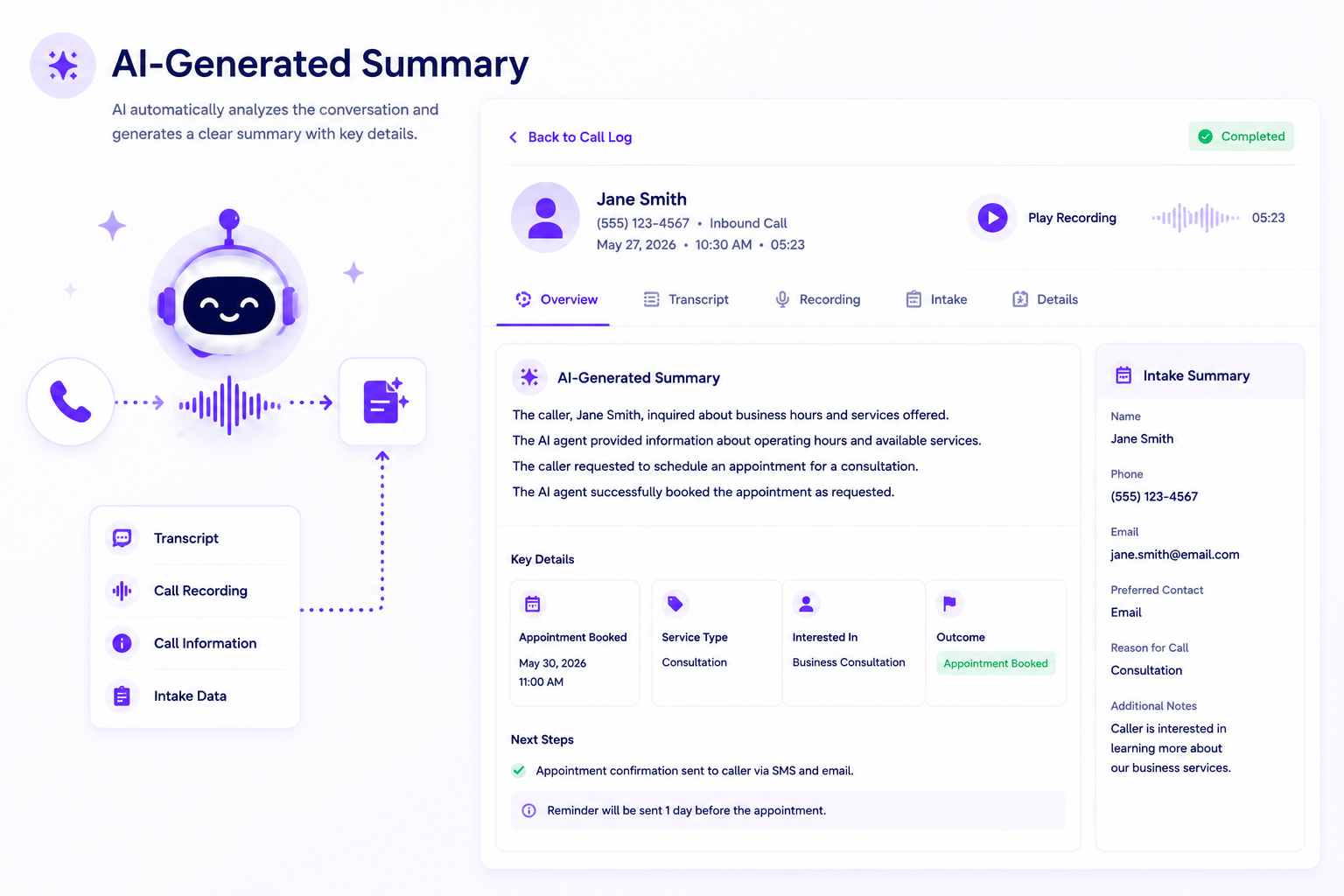
Call information panel with caller Jane Smith, date May 27, 2026, 10:30 AM, 5:23 duration, AI agent, inbound call completed.
Call Information
Interface showing AI-generated call summary for Jane Smith including appointment details and next steps.
AI-Generated Summary
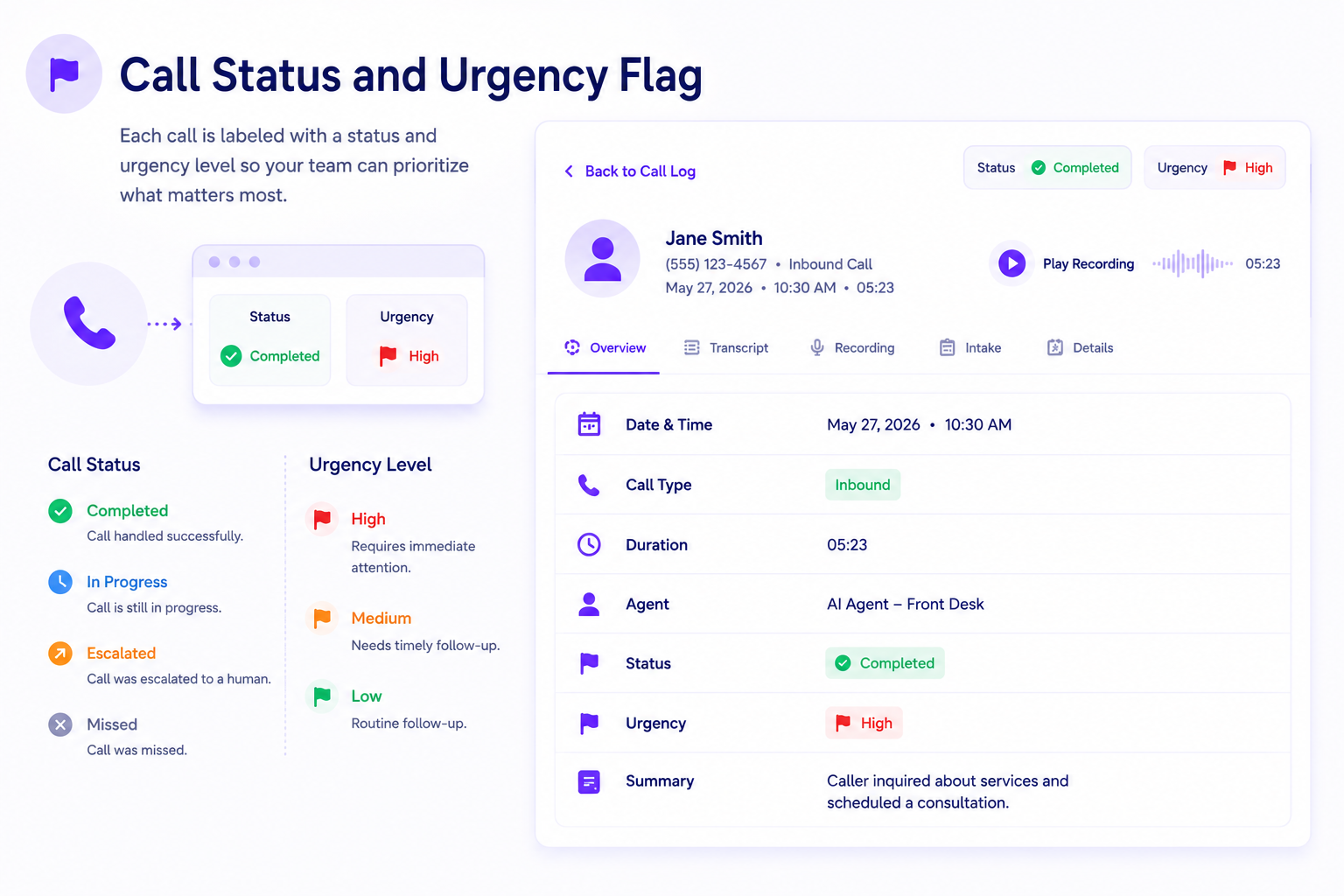
Call status interface showing details for Jane Smith's completed inbound call marked high urgency.
Call Status and Urgency Flag
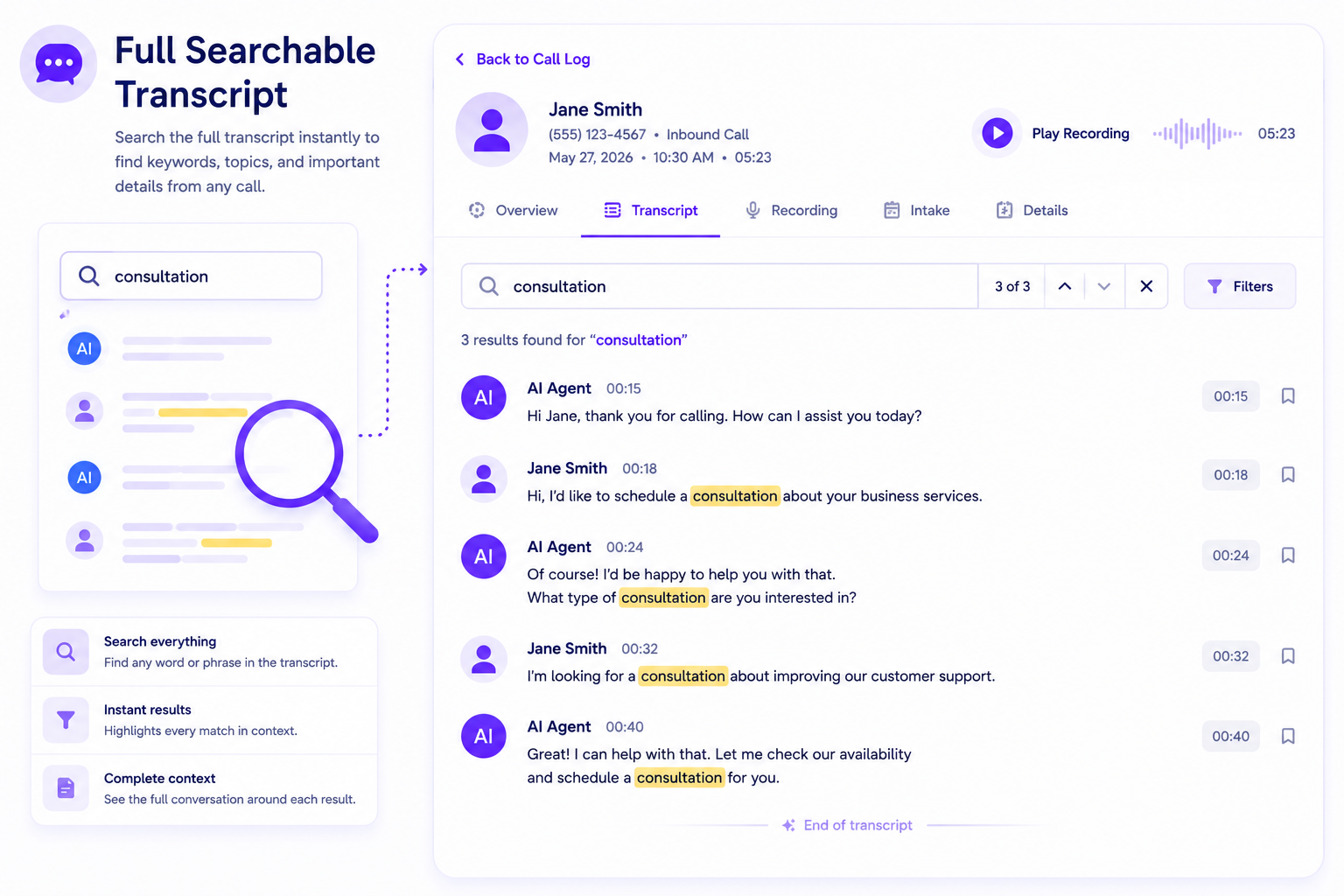
User interface showing a call transcript with search results for 'consultation' highlighted in yellow.
Full Searchable Transcript
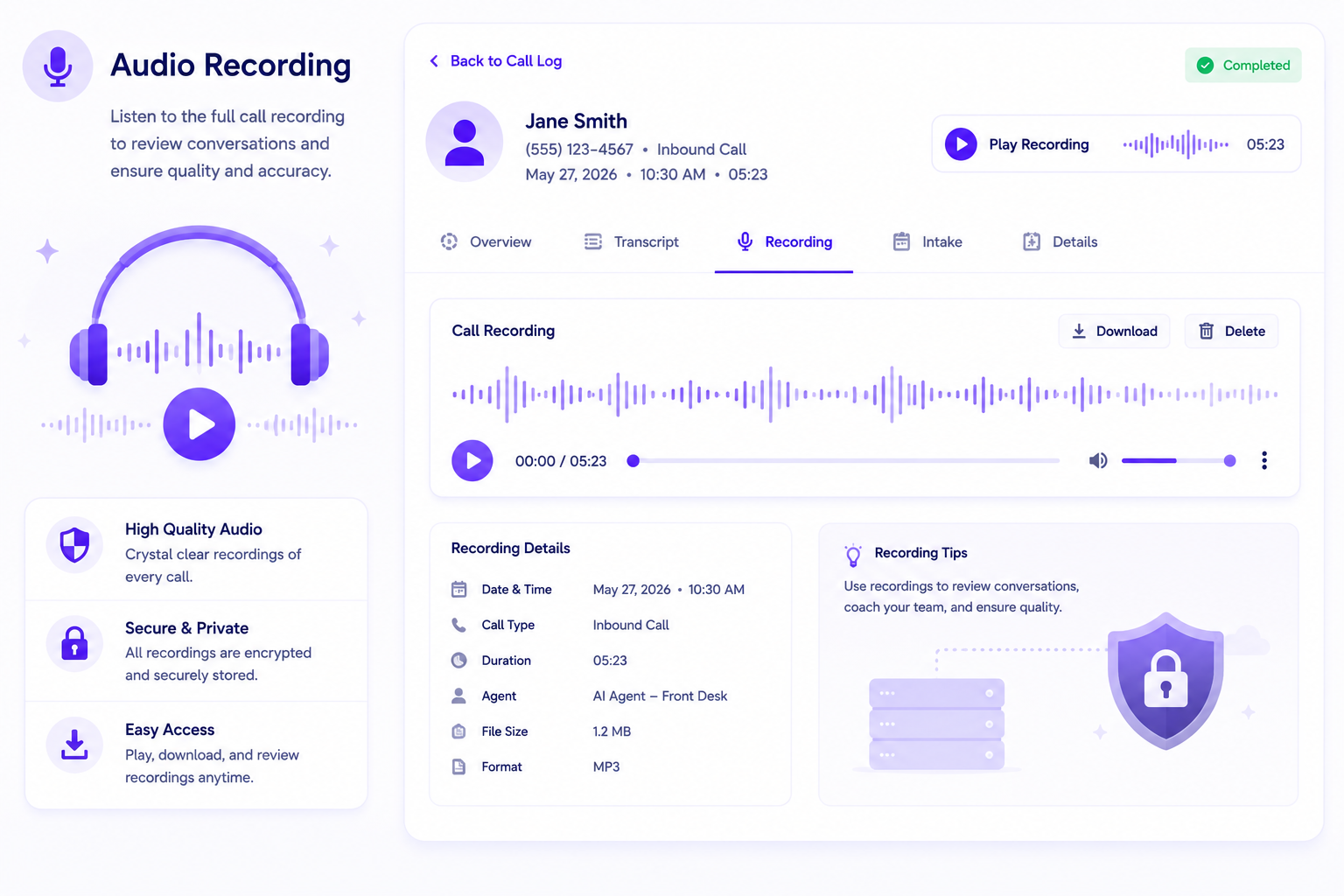
Audio recording interface showing call log, playback controls, recording details, and security features.
Audio Recording
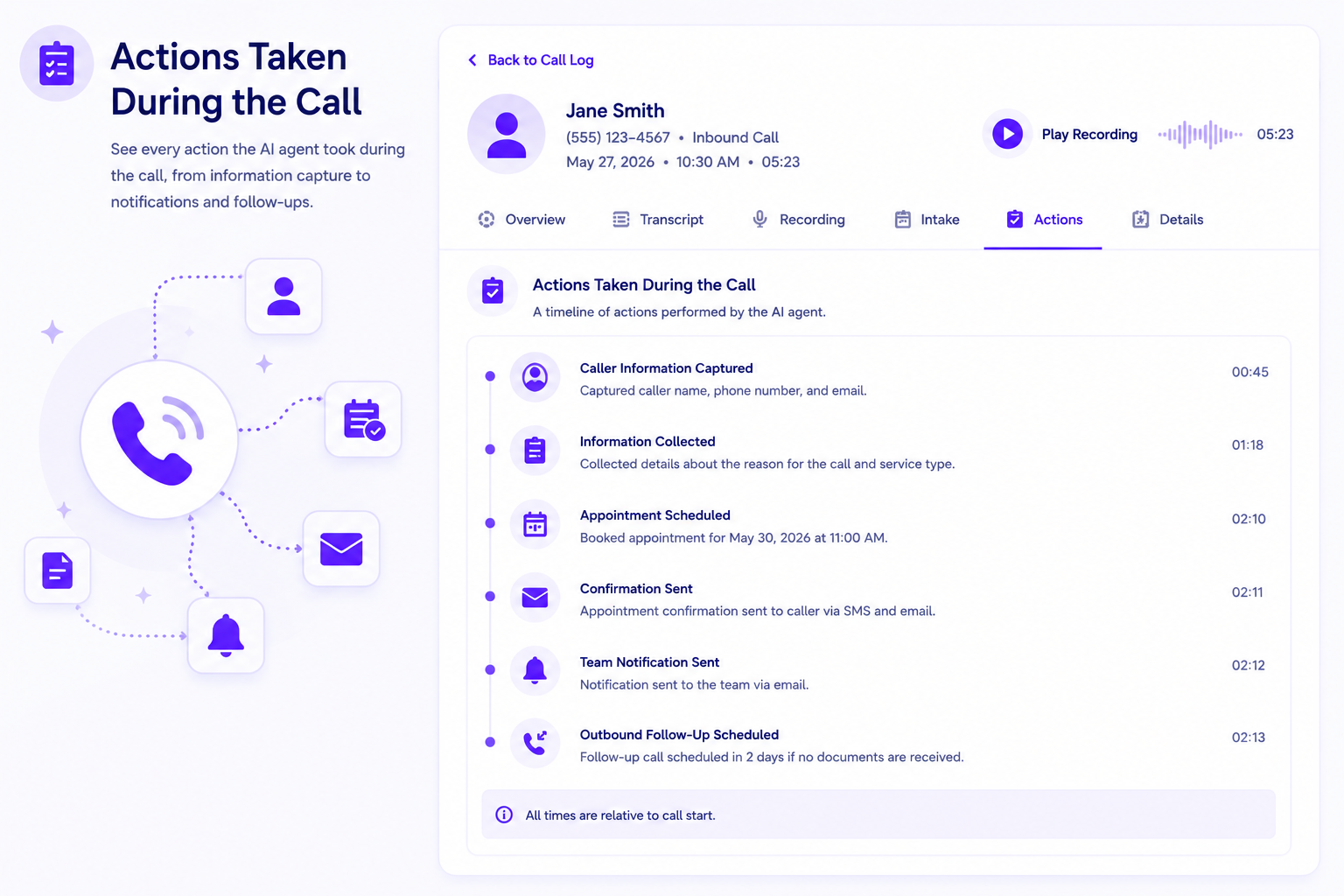
UI showing AI agent actions during a call with caller info, appointment scheduling, notifications, and follow-ups.
Actions Taken During the Call

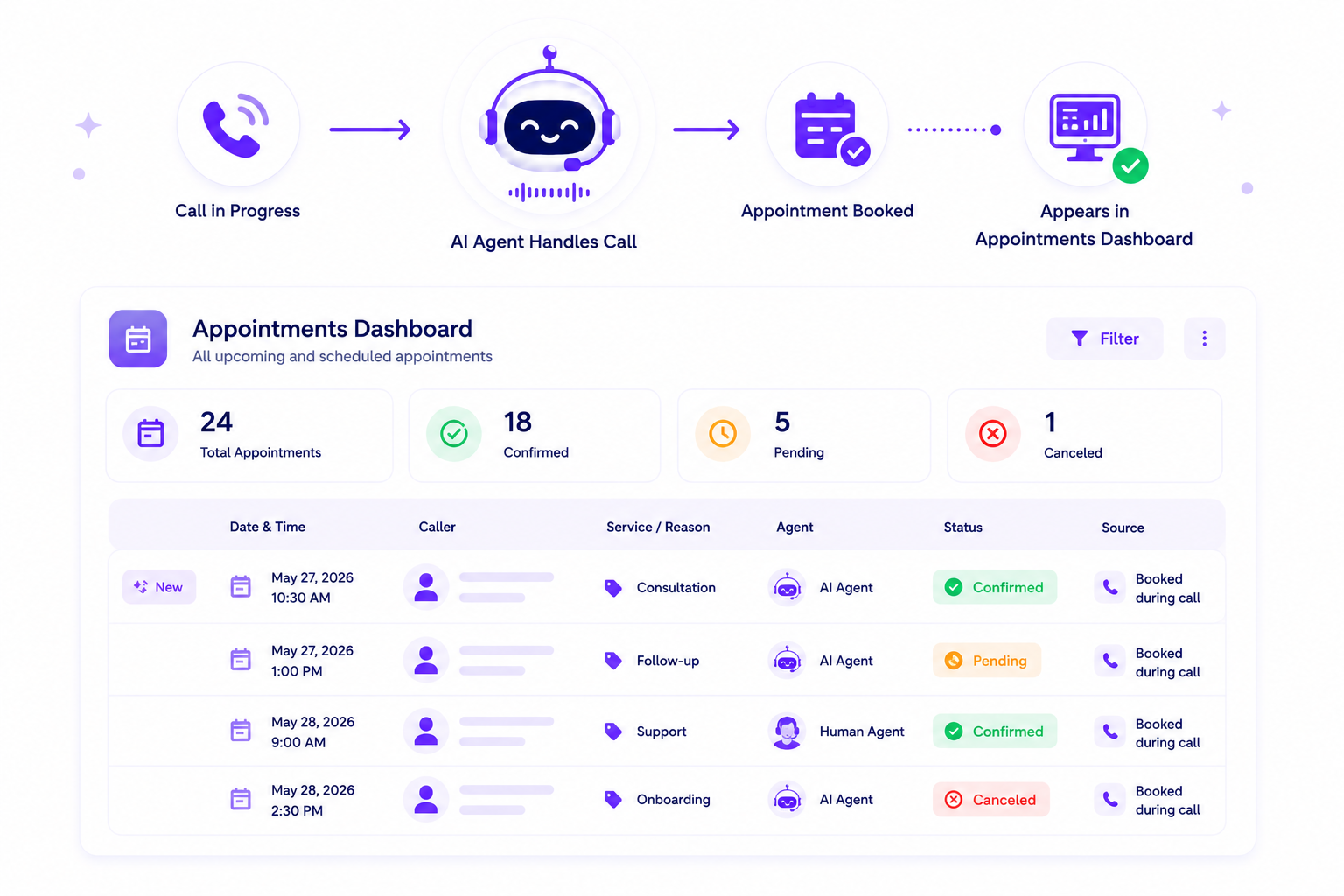
Appointment Activity Tracked Alongside Call Activity

Appointments booked by your AI agent are tracked in a dedicated Appointments dashboard, visible alongside your call logs from the same platform. Your team does not need a separate scheduling tool to see what was booked.

Appointments List View

A searchable list of all AI-booked appointments showing: caller name, appointment type, assigned agent, date and time, and current status: confirmed, completed, cancelled, or awaiting confirmation.

Appointment Detail

Click into any appointment to see the full booking record: caller details, booking reason, start and end date and time, appointment status, notes, and a direct link to the originating call that generated the booking.

Calendar View

Switch to a visual calendar layout showing all bookings across your organization and individual appointment agents. See your full schedule at a glance and identify open slots without opening a separate calendar application.

Appointment Settings

Configure booking rules, agent assignment, and availability windows from the Appointment Settings panel within the same dashboard. Managed directly from your platform, no separate scheduling tool required.

Reporting Connects to Every Part of the Call Workflow

Your dashboard is not a separate reporting environment. Every record in it was created by call activity, intake, scheduling, outbound follow-up, or escalation. Reporting is the output of the full call workflow.
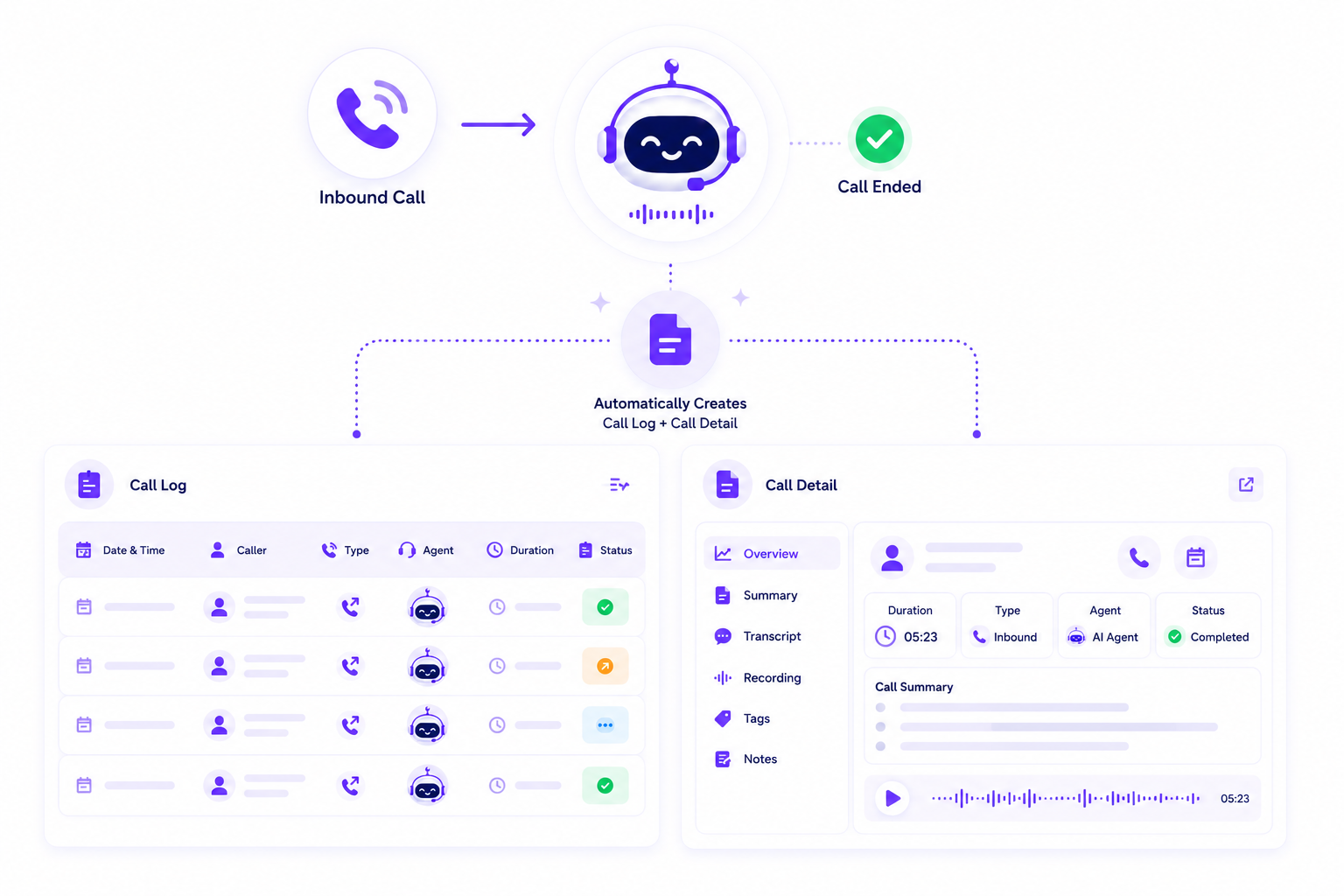
Inbound Calls → Call Log + Call Detail
Every inbound call answered by your AI agent generates a call log entry and a full call detail record the moment it ends.
Diagram showing inbound call handled by AI agent creating call log and detailed call summary with transcript and recording.
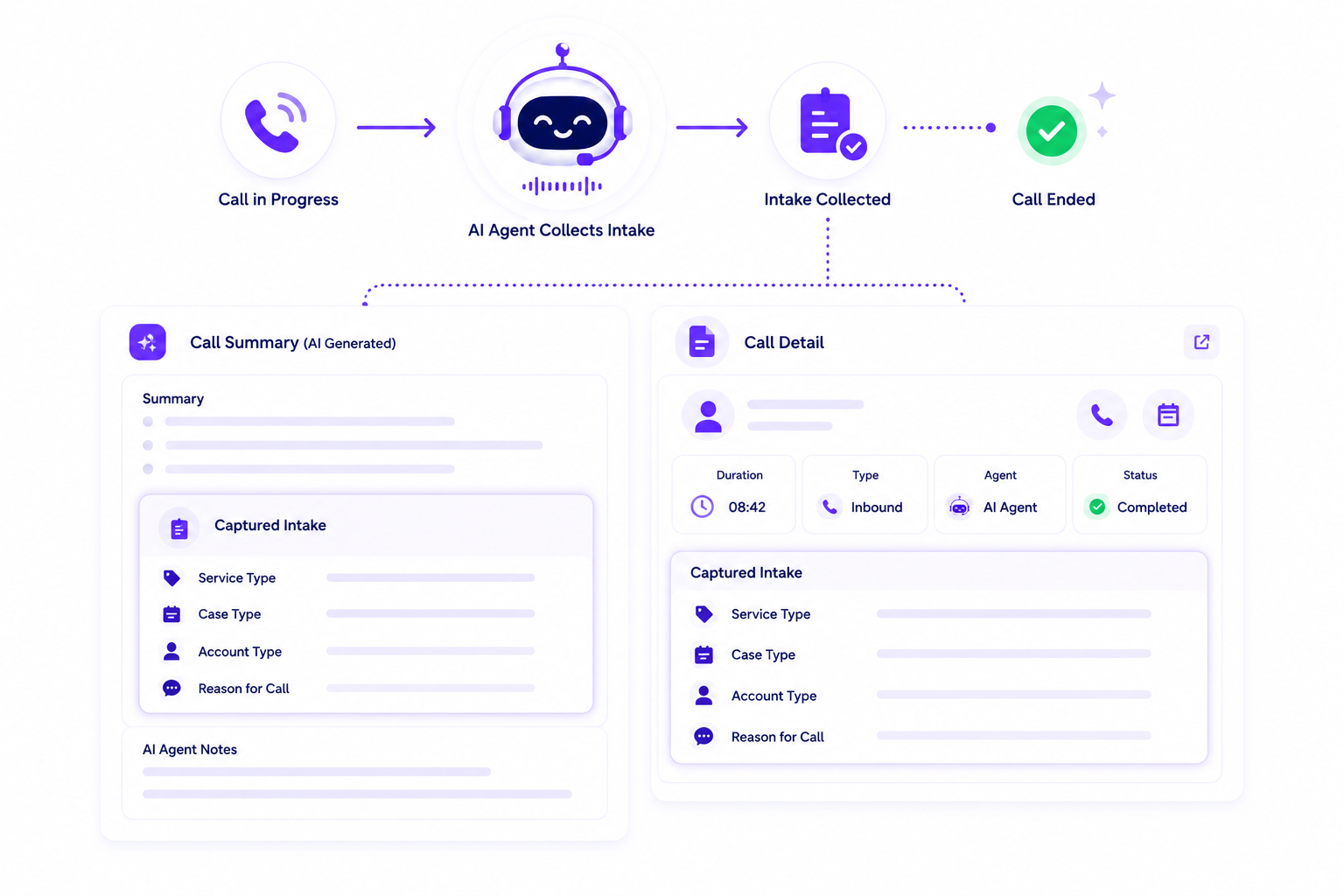
Intake Collected → Captured in Call Summary
When intake is collected during a call, the captured data appears in the AI-generated call summary and the call detail view.
Flowchart showing call progress, AI agent intake collection, intake collected, and call ended with summaries and details.
Appointment Booked → Appointments Dashboard
Every appointment booked during a call appears in the Appointments dashboard immediately.
Workflow icons showing call progress, AI handling, appointment booked, and dashboard entry with appointment summary below.
Escalation Triggered → Escalation Rate + Call Detail Status
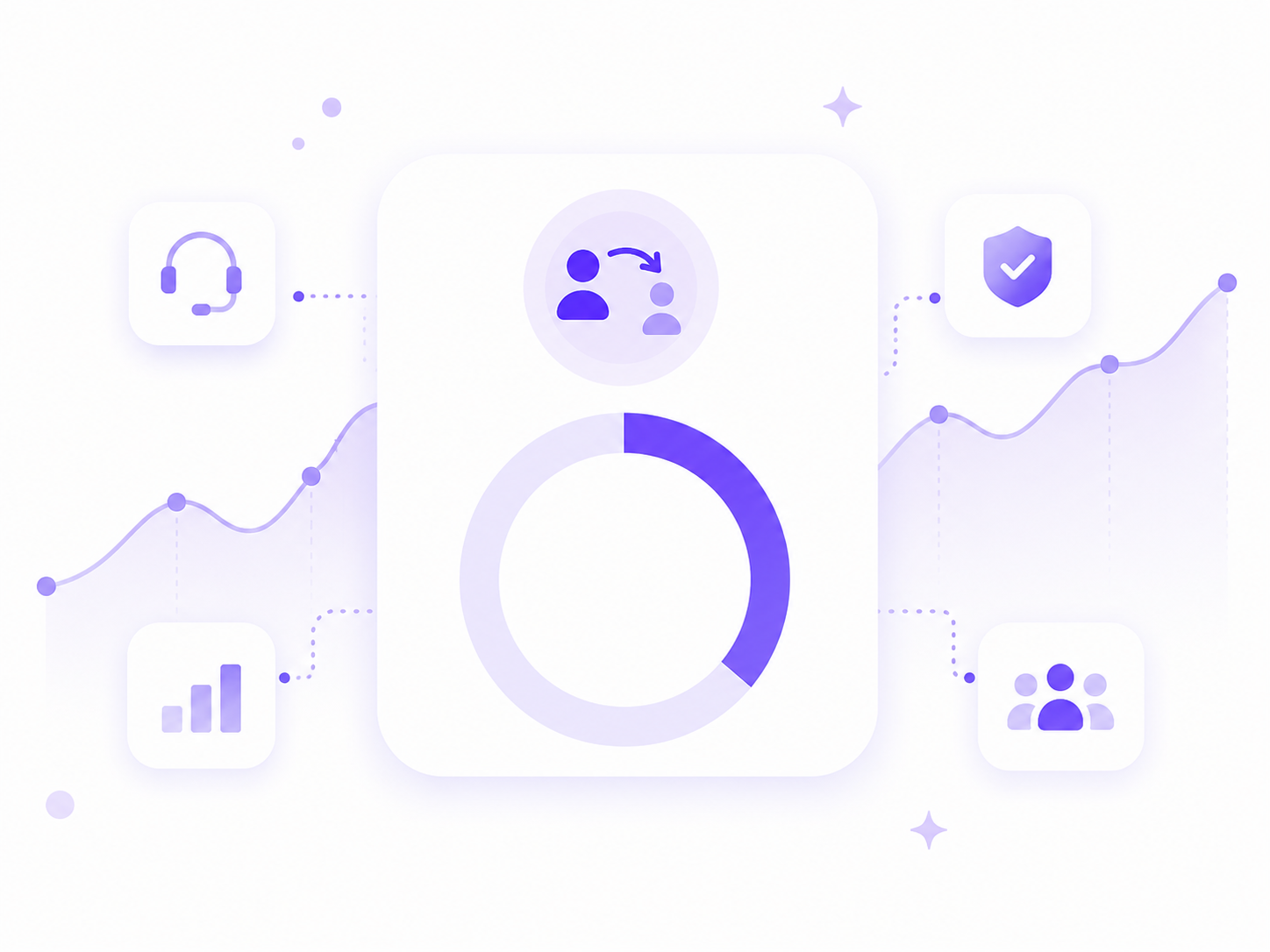
When a call escalates, the escalation rate stat on your central dashboard updates in real time.
Purple-themed chart with a highlighted donut graph and icons for customer support, security, growth, and team.
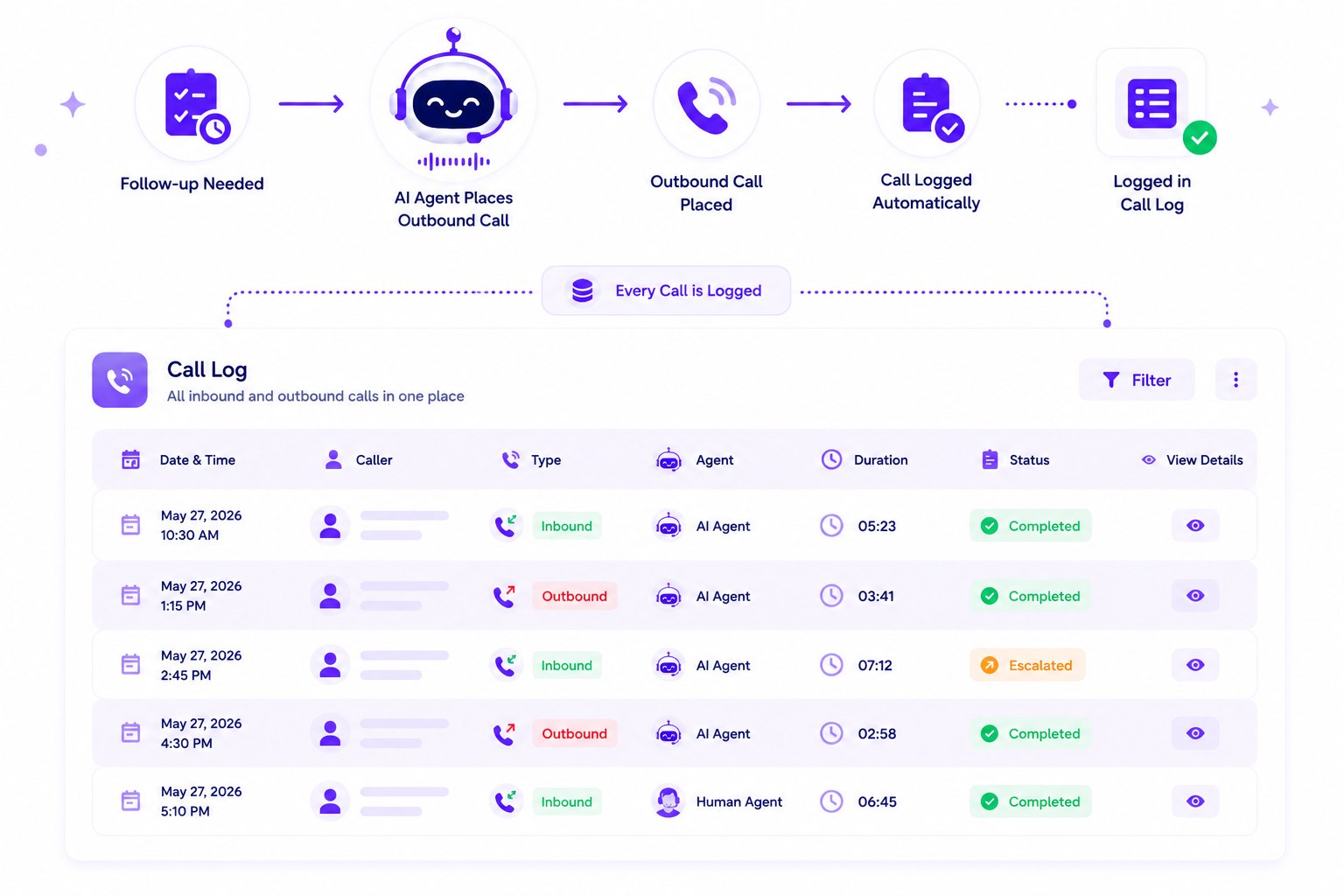
Outbound Call Placed → Logged in Call Log
Every outbound follow-up call placed by your AI agent is logged in the call log alongside inbound calls.
Graphic showing AI agent placing outbound calls and automatic logging in a call log table with statuses.
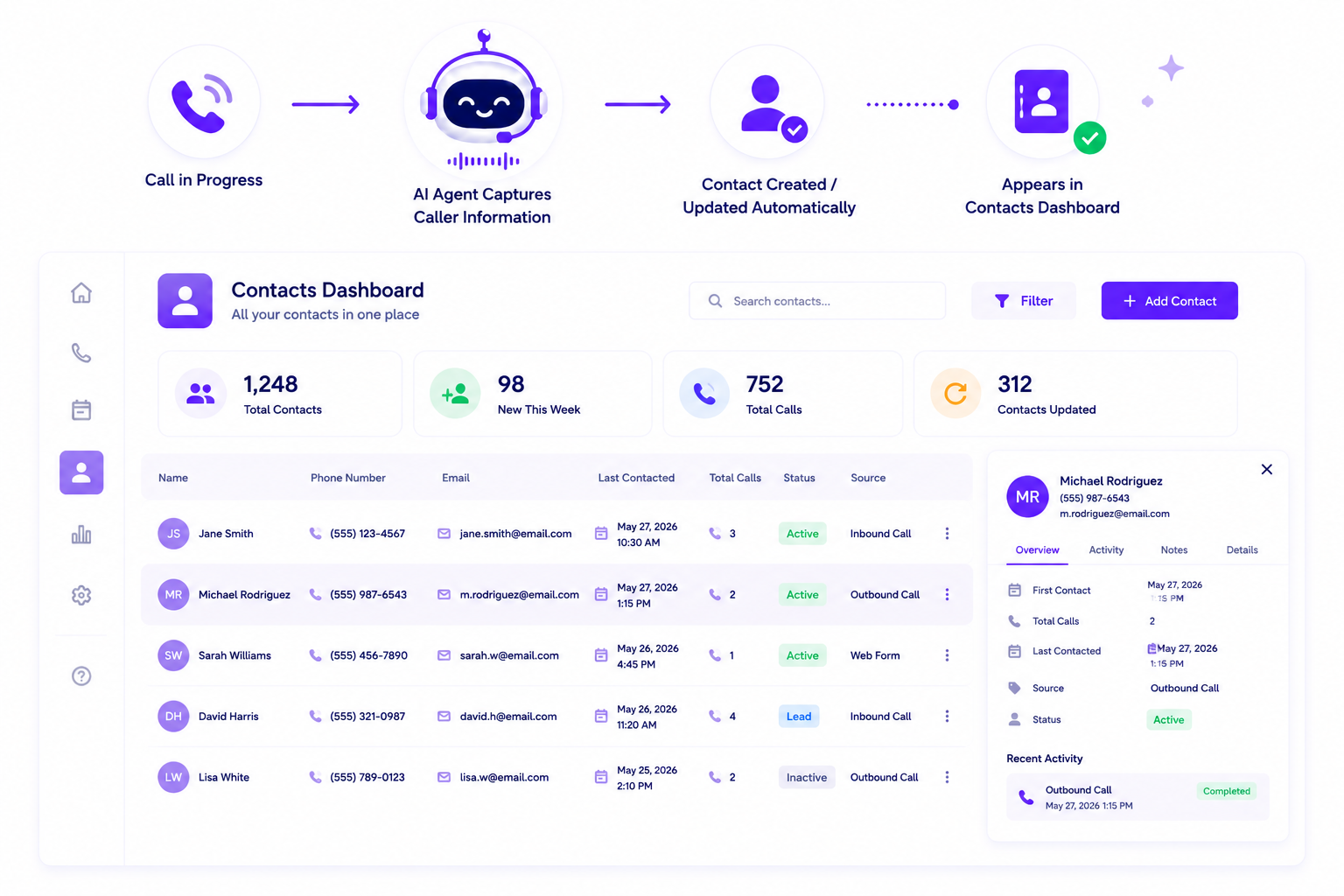
Contact Created → Contacts Dashboard
Every caller captured during a call creates or updates a contact record automatically.
Dashboard showing contacts, total calls, recent updates, and details for Michael Rodriguez.
Two shields with gradient purple-blue edges, one with medical caduceus, the other with checkmark.

Secure Access for Call Records

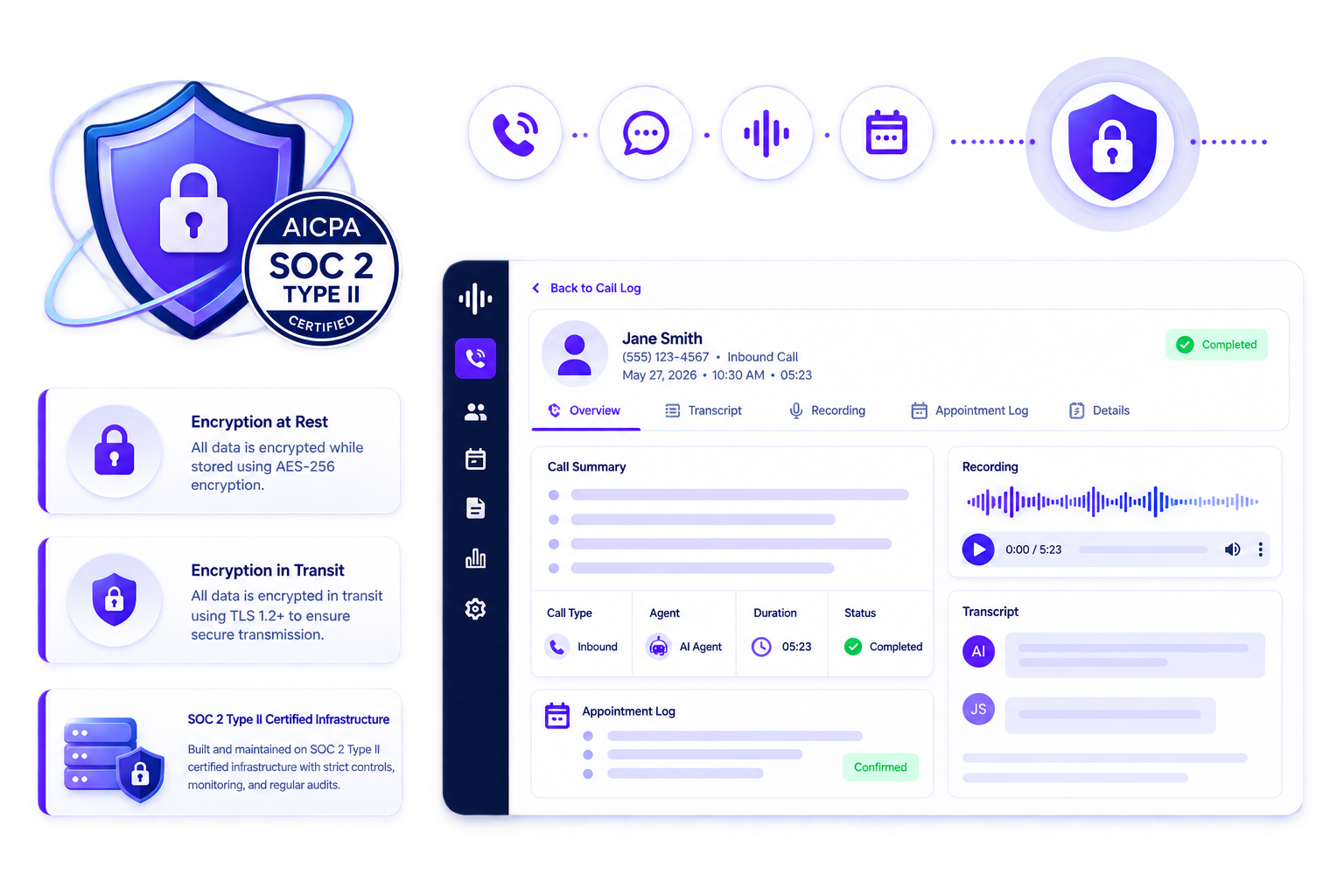
Every call record, transcript, recording, and appointment log in AI Answering is stored on SOC 2 Type II certified infrastructure with encryption at rest and in transit.

Role-Based Access Controls

Define exactly which team members can view, create, or update call logs, contact records, appointments, and escalation settings.

Encrypted Call Records

All call data: transcripts, recordings, AI summaries, and intake information, is encrypted at rest and in transit.

SOC 2 Type II Certified Infrastructure

Our platform is built on SOC 2 Type II certified infrastructure. All records and call data are handled with verified security, availability, and confidentiality controls.

Trusted by Businesses That Can't Afford to Miss a Call

Two shields with gradient purple-blue edges, one with medical caduceus, the other with checkmark.

"We were losing leads every week because no one had time to call back incomplete intakes. Now the follow-up happens automatically and by the time we see the lead, intake is already done."

Managing Partner,
Personal Injury Law Firm
City, State

"Appointment no-shows dropped noticeably once reminders started going out consistently. The AI handles the calls and our front desk handles patients. That separation alone changed how the day runs."

Practice Administrator,
Multi-Location Medical Practice
City, State

"Our agents are in the field all day and buyer calls were going to voicemail constantly. Now every missed call gets a follow-up automatically and leads are still warm by the time an agent connects with them."

Broker,
Residential Real Estate Team
City, State

See What Your Call Center Actually Looks Like When Every Call Is Logged.

Watch AI Answering log a real call, generate the AI summary, and show it in the dashboard — before your team has taken a single manual action.

All Your Questions, Answered

FAQs About Answering AI

Is every call logged automatically or do I have to enable it?
What does the AI-generated call summary include?
Can I search for specific calls or keywords?
What metrics does the central dashboard show?
Can I see which calls resulted in appointments?
Are outbound calls logged the same way as inbound calls?
Can I control which team members can access call records?
Are call records stored securely?
Can I export call records or reports?
Is there a free trial?